

21
Apr
Step-by-Step Guide to Setting Up a Forex EA (MT4 & MT5)
TL;DR:
- Proper preparation and system stability are crucial for successful forex EA deployment.
- Risk management settings like lot size and stop loss are vital and should be fine-tuned before live trading.
- Backtesting and demo testing help verify EA performance, but live monitoring and adjustments are essential.
A wrong lot size, a missing stop loss, or auto-trading left disabled — any one of these can drain your account before you even realize your EA never fired a single trade. Thousands of retail traders set up expert advisors (EAs) each month, yet far too many skip the foundational steps and pay for it in real capital. This guide walks you through every stage of forex EA setup on MetaTrader 4 (MT4) and MetaTrader 5 (MT5): from gathering prerequisites to installing, configuring, and verifying your EA is actually working. Whether you’re running your first robot or rebuilding a broken setup, this is the checklist you need.
Table of Contents
- What you need before setting up your forex EA
- Step-by-step installation of a forex EA in MT4 and MT5
- Key configuration: Risk management and EA settings
- Testing your EA: Backtesting and live monitoring
- Our hard-won lessons in real EA setup and automation
- Take your automated trading to the next level
- Frequently asked questions
Key Takeaways
| Point | Details |
|---|---|
| Preparation is crucial | Having the correct tools, files, and a stable VPS will prevent most EA setup issues. |
| Customize risk settings | Always adjust stop loss, position size, and test settings before running an EA live. |
| Thorough testing matters | Backtest and monitor your EA on a demo account before trusting it with real money. |
| Ongoing monitoring is required | Track your EA’s trades regularly to catch errors and improve its performance over time. |
What you need before setting up your forex EA
Before you touch a single file, get your workspace in order. Skipping this phase is the most common reason traders spend hours troubleshooting problems that shouldn’t exist in the first place.
Accounts and software you’ll need:
- A broker account that explicitly supports MT4 or MT5 (check your broker’s platform page)
- MetaTrader 4 or MT5 installed and connected to your broker’s live or demo server
- Your EA file: .ex4 for MT4 or .ex5 for MT5
- A valid license or activation key if your EA vendor requires one
- Stable internet or a dedicated trading server
One decision that catches many traders off guard is where the EA actually runs. Running your EA on a home PC works during testing, but it introduces serious risk during live trading. Power cuts, internet drops, and Windows updates can interrupt your EA mid-trade. A VPS essential for EAs because home PC downtime can be costly, especially for EAs that scale in and out of positions continuously. A London-based VPS is especially useful if your broker’s servers are in Europe, since low latency means faster order execution.
Check out the best VPS for forex trading options if you haven’t chosen a server yet. And if you’re newer to the platform itself, the beginner’s guide to MT4 expert advisors will give you solid context before diving into configuration.
Quick pre-setup checklist:
| Item | MT4 | MT5 |
|---|---|---|
| EA file type | .ex4 | .ex5 |
| Platform installed | ✓ | ✓ |
| Broker server confirmed | ✓ | ✓ |
| DLL imports allowed | Optional | Optional |
| VPS or stable PC | Recommended | Recommended |
| License key ready | If required | If required |
Pro Tip: Before going live, log in to your broker account from a browser separately to confirm your credentials work. Then note your account number and server name somewhere safe. If your VPS crashes and needs a reinstall, having these ready saves you hours.
Step-by-step installation of a forex EA in MT4 and MT5
With all prerequisites checked, you’re ready to start installing your forex EA. The process is similar across both platforms, but there are key directory and menu differences you need to get right.
Installation steps for MT4:
- Open MT4 and click File > Open Data Folder
- Navigate to MQL4 > Experts
- Copy your .ex4 file into this folder
- Restart MT4 or right-click the Navigator panel and select Refresh
- Locate your EA under Navigator > Expert Advisors
- Drag the EA onto your desired chart
- In the EA settings window, check Allow live trading and Allow DLL imports if required
- Click OK and verify the smiley face icon appears in the top-right of the chart
Installation steps for MT5:
- Open MT5 and click File > Open Data Folder
- Navigate to MQL5 > Experts
- Copy your .ex5 file into this folder
- Restart MT5 or refresh the Navigator panel
- Drag your EA onto the chart from Navigator > Expert Advisors
- Enable Allow Auto Trading in the settings dialog
- Confirm the EA icon in the chart header is active (not an X)
The configuration steps in MT4 and MT5 to enable proper EA operation include ensuring both platform-level and EA-level permissions are active simultaneously. Turning on auto-trading in the EA dialog alone won’t work if the platform’s master auto-trading button (top toolbar) is switched off.

| Step | MT4 | MT5 |
|---|---|---|
| Data folder path | MQL4/Experts | MQL5/Experts |
| File type | .ex4 | .ex5 |
| Enable auto-trading | Chart + toolbar | Chart + toolbar |
| DLL permission | Settings dialog | Settings dialog |
| Status indicator | Smiley face | Green EA label |
For a deeper walkthrough, you can also install a forex expert advisor using our full video-supported guide, or optimize your first MT4 expert advisor in under five minutes with our beginner-focused tutorial.
Warning: Never attach an unverified EA directly to a live account. Even well-reviewed robots can behave unpredictably on certain brokers or during news events. Always test first.
Pro Tip: If your EA doesn’t appear in the Navigator after copying the file, check that you placed it in the correct subfolder. MT4 and MT5 both have multiple subfolders inside MQL4/MQL5, and the wrong folder means the platform won’t detect the file at all.
Key configuration: Risk management and EA settings
Once your EA is loaded, you must configure each setting for real trading conditions. The default parameters that come with most EAs are calibrated for testing or demo environments, not your specific account size or broker conditions.
Top 5 settings you must not ignore:
- Lot size: Set this based on your account balance and risk tolerance, not the vendor’s default
- Stop loss (SL): Every trade should have one. If the EA has no SL option, treat that as a red flag
- Take profit (TP): Set a realistic target; open-ended profit targets can reverse into losses fast
- Max spread filter: Prevents the EA from entering trades during high-spread conditions like news events
- Magic number: A unique ID for each EA so multiple EAs don’t interfere with each other’s trades
One overlooked reality is that verified live results carry more weight than any backtest number, and the same applies to risk settings: what worked in a backtest may not work with your broker’s actual spreads and execution speed. Always simulate your settings on demo before applying them to a funded account.
Solid risk management in automated trading is not optional. It is the single factor that separates accounts that survive six months from those that blow up in six days. Before purchase, the questions to ask before buying an EA include whether the vendor provides transparent live track records and whether automation risk best practices are baked into the EA’s core logic.
Caution: Avoid any EA that uses martingale position sizing without a hard stop loss. These systems can appear profitable for weeks or months, then lose an entire account in a single bad sequence.
Pro Tip: After configuring your EA settings, save the profile using the EA’s built-in save function (if available) or screenshot your inputs. When you reinstall on a new VPS or after a crash, you won’t need to reconstruct your settings from memory.
Testing your EA: Backtesting and live monitoring
Properly configured, your final step is to test and monitor your EA before going fully live. Rushing past this phase is how traders discover their EA has a logic flaw after losing real money.
How to run a backtest in MT4/MT5:
- Open Strategy Tester (Ctrl+R in MT4, View menu in MT5)
- Select your EA from the dropdown
- Choose the symbol and timeframe matching the EA’s design
- Set the date range to at least 12 months of historical data
- Select Every tick for the most accurate simulation
- Click Start and review the results in the Report tab
Key backtest metrics to evaluate:
- Maximum drawdown: Anything above 30% deserves scrutiny
- Win rate vs. risk-reward ratio: A 40% win rate with a 1:3 RR still beats a 70% win rate with a 1:0.5 RR
- Profit factor: Aim for above 1.5 for consistent performance
- Total trades: Fewer than 100 trades in a backtest gives statistically weak results
Remember that verified live results carry more weight than any backtest return. Historical data can be curve-fitted to look perfect while live results expose the real story. Run the EA on a demo account for at least three to four weeks before trusting it with real capital.
Live monitoring checklist:
- EA icon is active (no red X or disabled label)
- Trades appear in the terminal’s trade tab within expected timeframes
- Journal tab shows no recurring errors
- Drawdown is within the range seen during backtesting
- EA is not exceeding your set lot sizes or trade frequency
For a full breakdown of the process, the guide on backtesting an EA in MT5 walks through each setting in the strategy tester with examples.
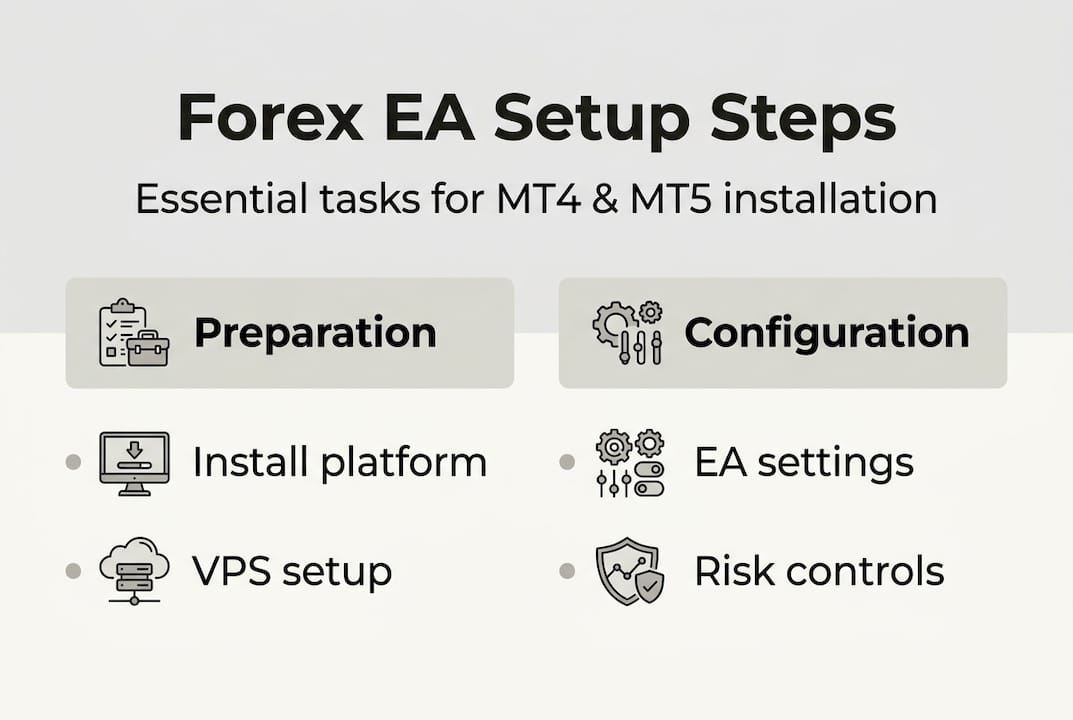
If your EA isn’t trading, work through this sequence: confirm auto-trading is on at platform level, check that the market is open and within the EA’s allowed trading hours, review the journal for error codes, and contact vendor support with a screenshot of the journal output.
Our hard-won lessons in real EA setup and automation
Let’s zoom out and talk about what actually makes EA setups succeed in practice, because it’s rarely the EA itself that’s the problem.
The majority of live EA failures come down to two things: skipping risk configuration and running the robot on an unstable system. Traders spend hours optimizing parameters but launch on a home PC that reboots every Tuesday night for Windows updates. That single missed trade or open position left unmanaged overnight can erase weeks of gains.
Here’s the insight most guides won’t give you: running an EA on demo for several weeks beats any amount of parameter optimization. Live demo trading exposes broker-specific quirks — requotes, spread spikes, and order rejection patterns — that backtests simply can’t replicate. We’ve seen traders with beautifully optimized EAs blow accounts in two weeks because they skipped this step entirely.
Keep a trading journal for your EA. Log every error, every unexpected trade, and every setting change. This habit sounds tedious but it dramatically shortens the feedback loop between problem and fix. And maintain a firm stance on this: if your EA has no stop loss, do not run it on a live account, period. Explore a structured forex automation workflow to build these habits into your routine from day one.
Take your automated trading to the next level
Ready to automate more trades and maximize your setup efficiency? FxShop24 offers a curated range of tested, prop firm-ready expert advisors with lifetime updates and full installation support, so you’re never navigating setup alone.
Whether you’re exploring automated futures trading systems or need a reliable walkthrough to install trading systems step-by-step, the FxShop24 library has tools built specifically for MT4 and MT5 traders. If you’re still deciding which approach fits your goals, a breakdown of the types of automated trading systems will help you match the right strategy to your account style and risk profile.
Frequently asked questions
Do I need a VPS for running a forex EA?
A VPS is strongly recommended to keep your EA running 24/7 with minimal downtime and fast broker connections; home PCs introduce unacceptable uptime risk for live trading.
How do I know if my EA is working correctly after setup?
Monitor the EA status icon on the chart and check for trade activity in the terminal’s journal or trade tabs; always confirm behavior on a demo account before going live.
Which risk settings are most important when setting up an EA?
Prioritize stop loss, lot size, and spread filter settings; verified risk management practices including proper position sizing and active vendor support are more important than chasing high backtest returns.
Can I use the same EA file in both MT4 and MT5?
No — MT4 uses .ex4 files and MT5 uses .ex5 files, and each is compiled for its specific platform; always use the file version your vendor supplied for your exact platform.
What should I do if my EA doesn’t trade?
First confirm that auto-trading is enabled at both the platform toolbar level and within the EA’s own settings, then check the journal tab for specific error messages and verify that the market is within the EA’s allowed trading session hours.