

9
Dec
How to Install Forex Expert Advisor: Complete Guide
Overview
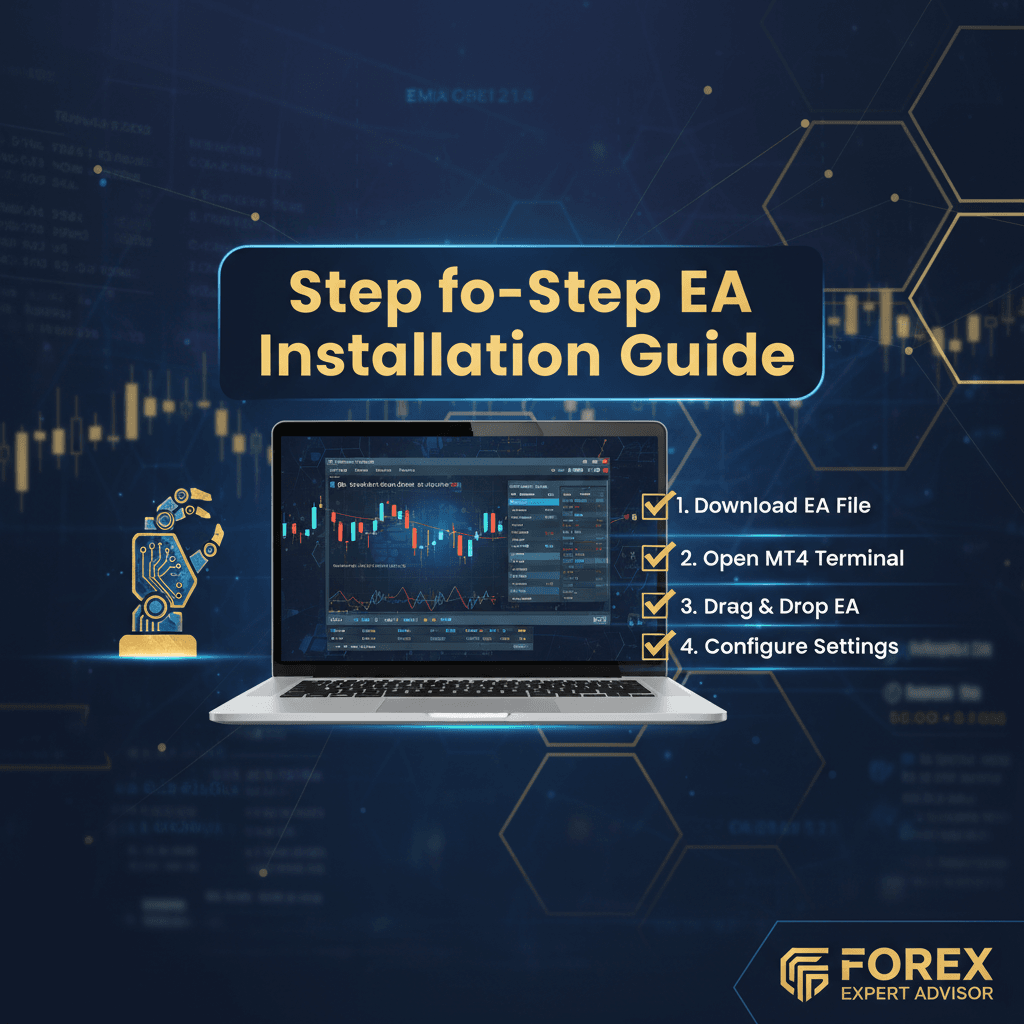
How to install forex expert advisor software correctly is essential for successful automated trading. This comprehensive guide walks you through the complete installation process for Expert Advisors (EAs) on both MetaTrader 4 and MetaTrader 5 platforms. Whether you're a beginner or experienced trader, follow these step-by-step instructions to ensure your EA runs smoothly without errors
Before You Begin
System Requirements
- Operating System: Windows 10 or later (64-bit recommended)
- Processor: Dual-core CPU minimum (quad-core or higher recommended)
- RAM: 2-8 GB
- Storage: SSD preferred for faster performance
- Internet: Stable broadband connection with latency under 100 ms
- VPS: Recommended for 24/7 automated trading (latency under 10 ms)
Broker Requirements
- Account Type: Raw spread or ECN accounts work best
- Recommended Brokers: ICMarkets, RoboForex, FTMO, The5ers
- Leverage: 1:100 to 1:200 (moderate leverage)
- Currency: USD accounts (EUR for gold trading strategies)
Installation for MetaTrader 4 (MT4)
Step 1: Download Your Expert Advisor
- Download the EA file from FxShop24.net
- Locate the file in your Downloads folder
- Note the file extension (.ex4 or .mq4)
Step 2: Open MT4 Data Folder
- Launch MetaTrader 4
- Click File in the top menu
- Select Open Data Folder
- A new window opens showing your MT4 installation directory
Step 3: Copy EA Files
- In the Data Folder window, navigate to MQL4 > Experts
- Copy your EA file (.ex4 or .mq4) into the Experts folder
- If your EA includes custom indicators, copy them to MQL4 > Indicators
- If your EA includes libraries, copy them to MQL4 > Libraries
Step 4: Handle DLL Files (If Applicable)
For EAs with DLL files:
- Locate any .dll files included with your EA
- Copy .dll files to MQL4 > Libraries
- Important: Also copy .dll files to your Windows System folder:
- For 64-bit Windows: C:
- For 32-bit Windows: C:
Note: FxShop24 prioritizes no-DLL EAs for safety and ease of use. If your EA requires DLL files, ensure they’re from trusted sources.
Step 5: Configure Antivirus Settings
- Open your antivirus software
- Add MT4 installation folder to exclusions/whitelist
- Add the EA file specifically to exclusions
- This prevents false positives that block EA execution
Step 6: Enable Expert Advisors in MT4
- In MT4, click Tools > Options
- Go to the Expert Advisors tab
- Check the following boxes:
- ✓ Allow automated trading
- ✓ Allow DLL imports (if your EA uses DLL files)
- ✓ Allow imports of external experts
- Click OK
Step 7: Refresh MT4
- In the Navigator panel (left side), find Expert Advisors
- Right-click on Expert Advisors
- Select Refresh
- Your newly installed EA should now appear in the list
Step 8: Attach EA to Chart
- Open a currency pair chart (e.g., EUR/USD, XAU/USD for gold EAs)
- Drag your EA from the Navigator panel onto the chart
- A settings window appears
Step 9: Configure EA Settings
- Common Tab:
- ✓ Allow live trading
- ✓ Allow DLL imports (if applicable)
- Inputs Tab:
- Set your lot size (start small: 0.01-0.10 for testing)
- Configure risk percentage (1-2% recommended)
- Adjust stop-loss and take-profit levels
- Set trading hours if applicable
- Click OK
Step 10: Verify EA is Running
- Look at the top-right corner of your chart
- You should see a smiley face icon ☺
- Smiley face: EA is active and running
- X or sad face: EA is disabled or has errors
- Check the Experts tab at the bottom of MT4 for any error messages
Installation for MetaTrader 5 (MT5)
Step 1: Download Your Expert Advisor
- Download the EA file from FxShop24.net
- Locate the file in your Downloads folder
- Note the file extension (.ex5 or .mq5)
Step 2: Open MT5 Data Folder
- Launch MetaTrader 5
- Click File in the top menu
- Select Open Data Folder
- A new window opens showing your MT5 installation directory
Step 3: Copy EA Files
- In the Data Folder window, navigate to MQL5 > Experts
- Copy your EA file (.ex5 or .mq5) into the Experts folder
- If your EA includes custom indicators, copy them to MQL5 > Indicators
- If your EA includes libraries, copy them to MQL5 > Libraries
Step 4: Handle DLL Files (If Applicable)
For EAs with DLL files:
- Locate any .dll files included with your EA
- Copy .dll files to MQL5 > Libraries
- Important: Also copy .dll files to your Windows System folder:
- For 64-bit Windows: C:
- For 32-bit Windows: C:
Step 5: Configure Antivirus Settings
- Open your antivirus software
- Add MT5 installation folder to exclusions/whitelist
- Add the EA file specifically to exclusions
Step 6: Enable Expert Advisors in MT5
- In MT5, click Tools > Options
- Go to the Expert Advisors tab
- Check the following boxes:
- ✓ Allow automated trading
- ✓ Allow DLL imports (if your EA uses DLL files)
- ✓ Disable automated trading when account changes
- Click OK
Step 7: Enable Algo Trading Button
- Look at the top toolbar in MT5
- Find the Algo Trading button (looks like a chart with automation symbol)
- Click it so it turns green
- This enables all automated trading on the platform
Step 8: Refresh MT5
- In the Navigator panel (left side), find Expert Advisors
- Right-click on Expert Advisors
- Select Refresh
- Your newly installed EA should now appear in the list
Step 9: Attach EA to Chart
- Open a currency pair chart (e.g., EUR/USD, XAU/USD for gold EAs)
- Drag your EA from the Navigator panel onto the chart
- A settings window appears
Step 10: Configure EA Settings
- Common Tab:
- ✓ Allow algorithmic trading
- ✓ Allow DLL imports (if applicable)
- Inputs Tab:
- Set your lot size (start small: 0.01-0.10 for testing)
- Configure risk percentage (1-2% recommended)
- Adjust stop-loss and take-profit levels
- Set trading hours if applicable
- Click OK
Step 11: Verify EA is Running
- Look at the top-right corner of your chart
- Ensure the Algo Trading button in the toolbar is green
- Check the Experts tab at the bottom of MT5 for confirmation messages or errors
Common Installation Issues & Solutions
Issue 1: EA Not Appearing in Navigator
Solution: - Ensure the EA file is in the correct folder (MQL4/Experts or MQL5/Experts) - Right-click Expert Advisors in Navigator and select Refresh - Restart MetaTrader completely
Issue 2: “DLL Imports Not Allowed” Error
Solution: - Go to Tools > Options > Expert Advisors - Check “Allow DLL imports” - Ensure DLL files are copied to both MQL folder AND Windows System folder - Add MT4/MT5 to antivirus exclusions
Issue 3: Sad Face Icon on Chart
Solution: - Click the Algo Trading button in the toolbar (make it green) - Check that “Allow live trading” is enabled in EA settings - Verify your broker allows automated trading - Check Experts tab for specific error messages
Issue 4: EA Stops Trading After Platform Restart
Solution: - Re-enable Algo Trading button after each restart - Check EA settings haven’t reset - Verify account credentials are still valid
Issue 5: “Account Trade Context Busy” Error
Solution: - Reduce EA execution frequency in settings - Ensure only one EA is trading the same pair - Check for conflicting manual trades
Best Practices for EA Installation
- Test on Demo First: Always test new EAs on a demo account before live trading
- Start Small: Use minimum lot sizes (0.01) during initial testing
- One EA Per Chart: Avoid running multiple EAs on the same currency pair
- Use VPS: For 24/7 trading, use a low-latency VPS near your broker’s server
- Keep Backups: Save original EA files in a separate backup folder
- Monitor Performance: Check Experts tab regularly for errors or warnings
- Update Regularly: FxShop24 provides lifetime free updates—install them promptly
Support & Resources
If you encounter issues not covered in this guide:
- Knowledge Base: Visit FxShop24.net for detailed FAQs
- Telegram Community: Join our Telegram channel for peer support
- Direct Support: Contact FxShop24 support (response within 24 hours for installation issues)
- Troubleshooting: Check the Experts tab in MT4/MT5 for specific error codes
Final Checklist
Before you start trading with your EA, verify:
- ✓ EA file is in correct folder (MQL4/Experts or MQL5/Experts)
- ✓ Algo Trading button is green/enabled
- ✓ “Allow automated trading” is checked in Options
- ✓ Smiley face icon appears on chart
- ✓ No error messages in Experts tab
- ✓ EA settings configured (lot size, risk, stop-loss)
- ✓ Tested on demo account first
- ✓ Antivirus exclusions added
- ✓ Broker allows automated trading
You’re now ready to trade with your Expert Advisor. Remember: all EAs from FxShop24 come with lifetime free updates, unlimited account usage rights, and dedicated technical support.