
6
Apr
MT5 automated trading: step-by-step workflow guide
TL;DR:
- Proper setup and configuration are essential to prevent silent account drain in MT5 automation.
- Thorough backtesting with realistic spreads and out-of-sample validation ensures reliable EA performance.
- Continuous monitoring, adaptation, and disciplined risk management are crucial for long-term success.
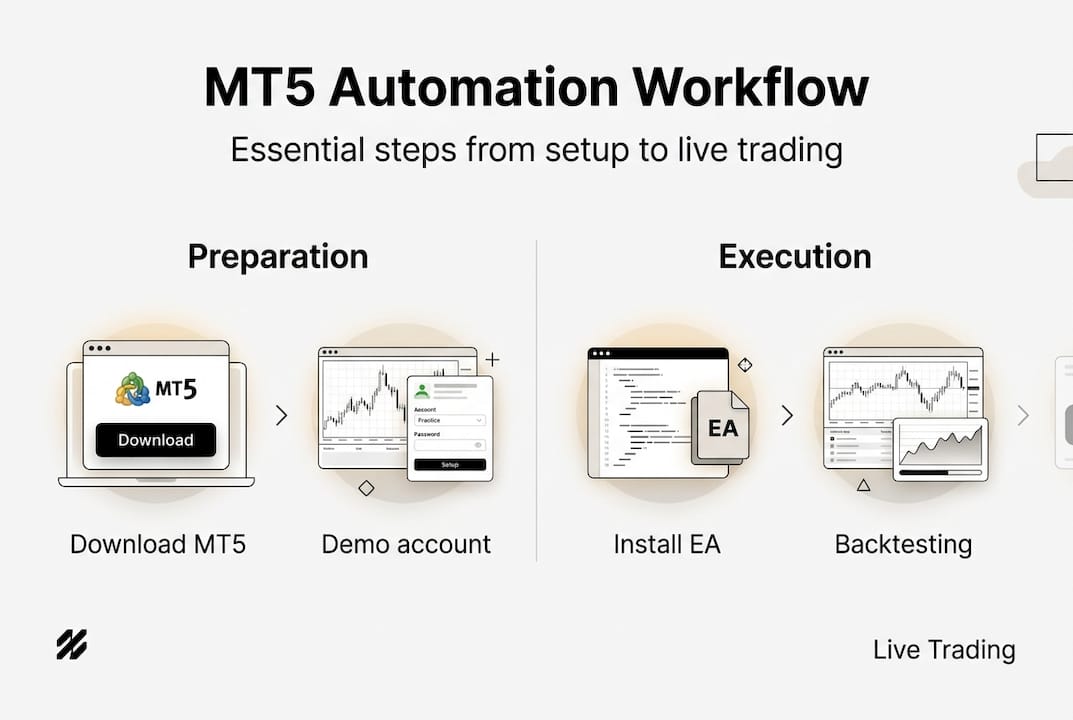
Skipping even one step in your MetaTrader 5 automation workflow can silently drain your account. A misconfigured EA parameter, a missing AutoTrading permission, or a backtest run without realistic spreads can all produce results that look great on paper but collapse in live markets. Whether you’re brand new to MT5 or upgrading from a manual trading routine, having a clear, repeatable process is what separates traders who scale their strategies from those who keep starting over. This guide walks you through every critical stage, from first installation to 24/7 live deployment, so you can automate with confidence and avoid the pitfalls that trip up even experienced traders.
Table of Contents
- Preparation: Setting up MetaTrader 5 for automation
- Step-by-step: Installing and activating automated trading (EA) in MT5
- Robust backtesting and performance evaluation in MT5
- Troubleshooting, optimization, and 24/7 deployment best practices
- Why real success with MT5 automation demands more than just following steps
- Level up your MT5 automation with pro trading solutions
- Frequently asked questions
Key Takeaways
| Point | Details |
|---|---|
| Preparation is crucial | Carefully set up and configure MT5 before automating any trades to avoid costly mistakes. |
| Test before you trade | Always backtest EAs with real tick data and realistic costs before using them on live accounts. |
| Monitor and optimize | Continuous monitoring and periodic optimization ensure long-term success of automated strategies. |
| Use a VPS for uptime | Running MT5 on a VPS keeps your automation live and effective around the clock. |
Preparation: Setting up MetaTrader 5 for automation
Before you attach a single EA to a chart, your MT5 environment needs to be properly configured. Rushing this stage is one of the most common reasons traders run into automation failures later. Think of it like building a house: the foundation has to be solid before anything else goes up.
Here’s what you need before you start:
- A trading account with a broker that supports MT5 (demo or live)
- The MT5 platform installed on your computer or a VPS
- A stable, high-speed internet connection
- Your EA files in .ex5 format
- Optional but recommended: a VPS for uninterrupted execution
You can download and install MT5 directly from your broker’s website or from MetaQuotes.net. The installation process is straightforward, but you’ll want to pay close attention to the data folder location, since that’s where your EA files will live. For a more detailed walkthrough, the Metatrader 5 setup guide at FxShop24 covers broker-specific configurations that can save you hours of troubleshooting.
Once installed, customize your interface for automation work. Open the Market Watch panel to monitor the pairs your EA will trade. Use the Navigator panel to access your EAs, indicators, and scripts quickly. The Toolbox at the bottom of the screen gives you access to your Journal, Experts tab, and Trade history, all essential for monitoring live automation.
Here’s a quick reference for the core MT5 panels you’ll use daily:
| Panel | Location | Purpose |
|---|---|---|
| Market Watch | Left sidebar | Monitor tradable instruments |
| Navigator | Left sidebar | Access EAs, indicators, scripts |
| Toolbox (Experts tab) | Bottom panel | EA activity logs and errors |
| Toolbox (Journal tab) | Bottom panel | Platform-level system messages |
| Strategy Tester | View menu | Backtest and optimize EAs |
For a deeper look at why MT5 outperforms older platforms for automation, the MT5 platform benefits page breaks down the key technical advantages. You can also review MT5 desktop installation steps if you run into setup issues.
Pro Tip: Always create a demo account first and run your entire automation setup there before touching a live account. Even a well-reviewed EA can behave unexpectedly with certain broker settings or account types.
Step-by-step: Installing and activating automated trading (EA) in MT5
With your MT5 platform ready, you can now install your first Trading Robot (EA) and begin automating trades. This is where most traders either get it right or introduce subtle errors that cost them later.
Follow these steps in order:
- Enable AutoTrading. Click the AutoTrading button in the top toolbar. It should turn green. You can also enable AutoTrading and set permissions under Tools > Options > Expert Advisors. Make sure “Allow automated trading” is checked.
- Copy your EA file. Place the .ex5 file into the correct folder: File > Open Data Folder > MQL5 > Experts. Drop your file there.
- Refresh the Navigator panel. Right-click inside the Navigator panel and select “Refresh.” Your EA should now appear under the Expert Advisors section.
- Attach the EA to a chart. Drag the EA onto the chart of your chosen instrument and timeframe. A settings dialog will open.
- Configure key parameters. Set lot size, stop loss, take profit, and any strategy-specific inputs. Double-check every field before clicking OK.
- Allow live trading. In the EA settings dialog, go to the “Common” tab and check “Allow live trading.” Without this, the EA will run silently but place no orders.
For a visual walkthrough, the guide on how to add an EA to MT5 is one of the most practical resources available. If you’re working with a new EA for the first time, the installing forex EAs guide covers broker permission quirks that often catch traders off guard.
Here’s a comparison to help you decide where to deploy first:
| Factor | Demo account | Live account |
|---|---|---|
| Financial risk | None | Real capital at stake |
| Execution accuracy | Close but not exact | True market conditions |
| Psychological pressure | Low | High |
| Best use | Initial testing, parameter tuning | After verified demo results |
For traders who need their EA running around the clock, running EAs on a VPS removes the dependency on your local machine entirely. You can also reference the MT5 automation guide for additional permission configurations.
Pro Tip: After attaching your EA, check the top-right corner of the chart. You should see a smiley face icon, which confirms the EA is active and has trading permissions enabled.
Robust backtesting and performance evaluation in MT5
Once your EA is installed, it’s vital to validate its performance before risking real capital. Backtesting in MT5 is more powerful than most traders realize, but only if you use it correctly.

Open the Strategy Tester via View > Strategy Tester. Select your EA, choose your instrument and timeframe, then set the modeling method to “Every tick based on real ticks” for the highest accuracy. This model replays actual historical tick data rather than interpolating from bar data, which produces far more realistic results.
Key metrics to evaluate after every backtest:
- Profit Factor (PF): Gross profit divided by gross loss. Above 1.3 is acceptable; above 1.6 is strong.
- Maximum Drawdown: The largest peak-to-trough loss. Keep this under 30% for sustainable trading.
- Sharpe Ratio: Risk-adjusted return. A value above 1.0 indicates the strategy earns more than it risks.
- Win Rate: Context matters here. A 40% win rate can still be profitable with a high reward-to-risk ratio.
- Total trades: More trades give statistical significance. Under 100 trades is rarely reliable.
Here’s a quick benchmark table for evaluating EA quality:
| Metric | Minimum | Good | Excellent |
|---|---|---|---|
| Profit Factor | 1.1 | 1.3 | 1.6+ |
| Max Drawdown | Under 40% | Under 30% | Under 15% |
| Sharpe Ratio | 0.5 | 1.0 | 1.5+ |
| Minimum trades | 50 | 200 | 500+ |
One of the most damaging mistakes traders make is overfitting, which means optimizing an EA so heavily on historical data that it has no predictive power going forward. Always reserve at least 30% of your test data as out-of-sample (OOS) data that the EA was never optimized on. If performance drops sharply on OOS data, the strategy is curve-fitted, not robust.
Also avoid ignoring commissions and spreads during testing. Running a backtest with zero spread will almost always show inflated results. For a complete methodology reference, the MQL5 testing methodology covers how to configure realistic cost settings. You can also use the MT5 backtesting guide for a step-by-step breakdown, or explore how to automate forex trades across both MT4 and MT5 environments.
Troubleshooting, optimization, and 24/7 deployment best practices
Even the best trading algorithm can fail with poor monitoring or optimization. Here’s how to keep your workflow reliable once your EA goes live.
Start by watching these two tabs in the Toolbox panel every day:
- Experts tab: Shows EA-specific messages, including trade attempts, errors, and parameter confirmations. If your EA isn’t trading, this is the first place to look.
- Journal tab: Logs platform-level events like connection drops, account changes, and server messages.
Common issues traders encounter and their fixes:
- EA not trading: Check that AutoTrading is enabled, “Allow live trading” is checked in EA settings, and your account type matches the EA’s requirements.
- Execution delays: Often caused by slow internet or a distant broker server. A VPS located near your broker’s server dramatically reduces latency.
- Unexpected losses during news events: Many EAs aren’t designed for high-volatility news periods. Consider adding a news filter or pausing the EA manually before major releases.
- Input errors: Wrong lot sizes or inverted stop loss values can cause immediate losses. Always double-check inputs after any parameter change.
“A single overlooked error in EA code or a brief VPS outage can cost weeks of gains.”
For 24/7 reliability, VPS is essential for uninterrupted automated trading. It keeps your EA running even when your computer is off, your internet drops, or you’re traveling. The EA VPS setup guide walks you through choosing the right provider and configuring MT5 remotely.
For ongoing optimization, use walk-forward testing rather than static backtests. This method re-optimizes the EA on a rolling window of data, which mimics real-world conditions far better. Pair this with defensive EA coding practices: always validate inputs, use GetLastError() to catch execution failures, and build in maximum daily loss limits. If you’re comparing platforms, the MT4 vs MT5 for automation breakdown is worth reviewing. For troubleshooting specifics, the automation troubleshooting resource covers the most frequent MT5 deployment errors.
Pro Tip: Use a reputable VPS provider with servers geographically close to your broker’s data center. Even a 10ms reduction in latency can improve execution quality on fast-moving strategies.
Why real success with MT5 automation demands more than just following steps
Here’s something most MT5 guides won’t tell you: the workflow is necessary, but it’s not sufficient. Traders who follow every step perfectly and still blow their accounts usually have one thing in common. They treated their EA like a set-and-forget machine instead of a living strategy that needs periodic review.
Market regimes change. An EA that performs brilliantly during a trending year can lose consistently during a choppy, range-bound market. Empirical edges are rare, and they erode over time. The traders who stay profitable long-term are the ones who retest their EAs quarterly, adapt their parameters to current conditions, and never risk more than 1 to 2% of their account per trade.
Adaptive rules matter more than most traders admit. Using dynamic indicators like RSI thresholds that adjust to volatility, or position sizing that scales with drawdown, adds a layer of resilience that static EAs simply don’t have. Explore the MT5 platform insights page to see which native MT5 features support this kind of adaptive logic.
Discipline also means abandoning an EA when the data says to, not when your emotions say to. Many traders quit a solid strategy after a normal drawdown period, then re-enter after the recovery, which is the worst possible timing. The workflow gives you the structure. Your judgment and risk management give it staying power.
Level up your MT5 automation with pro trading solutions
Ready to automate smarter, not just harder? You’ve now got the full workflow, from platform setup to live deployment and beyond. The next step is applying it with tools that are already built for performance.
At FxShop24, we’ve put together a workflow automation guide that goes even deeper into optimizing each stage of your MT5 process. You can also browse our breakdown of automated trading system types to find the right approach for your strategy style. Before committing to any EA, use our guide on evaluating trading robots to vet performance claims with real metrics. We offer prop-firm-ready EAs, setup support, and lifetime updates so your automation stays sharp as markets evolve.
Frequently asked questions
What is the safest way to test a new EA in MT5?
Use a demo account first, run rigorous backtests with real tick data and realistic spread and commission settings, and only go live after seeing consistent demo results across multiple market conditions.
How do I avoid overfitting when running strategy tests in MT5?
Always apply out-of-sample validation or walk-forward testing, and avoid tuning too many parameters based solely on historical performance. Reserve at least 30% of your data for OOS testing.
Why is a VPS important for running automated strategies on MT5?
A VPS ensures 24/7 uninterrupted trading by keeping MT5 running even when your local machine is off or your internet connection is unstable.
What is considered a good Profit Factor or Drawdown for an EA on MT5?
Aim for a Profit Factor above 1.3 and a maximum drawdown below 30%. These benchmarks indicate a strategy with a credible risk-adjusted edge rather than a curve-fitted result.