



4
Apr
Configure MT5 Expert Advisors for Optimal Forex Automation
TL;DR:
- Proper setup, including symbol matching and permissions, is essential for MT5 EA functionality.
- Demo testing and journal monitoring help validate correct EA operation before live deployment.
- Using a VPS, unique magic numbers, and compliance settings ensure stable and compliant trading automation.
You set up your MT5 Expert Advisor, hit the green button, and nothing happens. No trades. No errors you can easily read. Just silence. This is one of the most common frustrations in automated forex trading, and it almost always comes down to missed configuration steps, not a broken strategy. This guide walks you through every stage of the process: what you need before you start, how to install and configure your EA correctly, how to avoid the mistakes that quietly kill performance, and how to validate that your EA is actually doing what it should.
Table of Contents
- Essential requirements for configuring MT5 EAs
- Step-by-step process for installing and configuring your MT5 EA
- Avoiding common mistakes and edge cases
- Testing, monitoring, and validating your EA setup
- Advanced tips for robust and compliant EA operation
- The overlooked keys to trouble-free MT5 EA automation
- Where to find trusted EAs and automation tools
- Frequently asked questions
Key Takeaways
| Point | Details |
|---|---|
| Check all requirements first | Proper account type, permissions, and tools are critical for successful MT5 EA setup. |
| Follow the step-by-step process | Installing and configuring your EA methodically prevents most common errors. |
| Test and monitor your EA | Always use demo testing and monitor logs to ensure reliable, real-world trading. |
| Apply advanced safeguards | Features like news filters, unique magic numbers, and out-of-sample validation maximize EA effectiveness. |
Essential requirements for configuring MT5 EAs
Before you touch a single file, you need to confirm your setup is ready. Skipping this step is exactly why most EA problems happen in the first place. Think of it like building a house: the foundation has to be solid before anything else matters.
First, confirm your MT5 platform is fully updated. Older builds can cause compatibility issues with newer EAs. Next, check with your broker whether your account uses a hedging or netting model. Hedging accounts allow multiple positions on the same symbol, while netting accounts consolidate them. Many EAs are built for hedging only, and running one on a netting account will cause position errors.
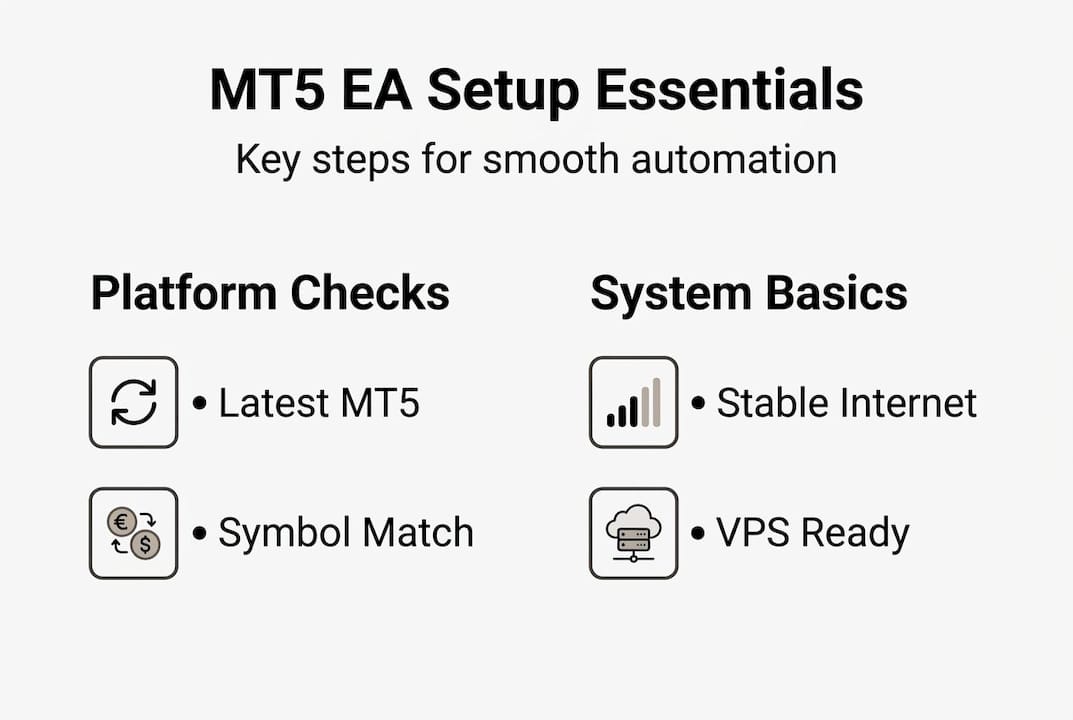
Symbol naming also matters more than most traders expect. Your broker might list gold as XAUUSD, GOLD, or XAUUSD.pro. If your EA is coded for XAUUSD and your broker uses XAUUSD.pro, it simply won’t trade.
| Requirement | Why it matters | Notes |
|---|---|---|
| MT5 build version | Older builds may reject newer EAs | Update via Help > Check for Updates |
| Account type | Hedging vs. netting affects order logic | Confirm with broker before purchase |
| Symbol naming | EA must match broker’s exact symbol | Check Market Watch for exact names |
| Admin permissions | EA needs write access to data folder | Run MT5 as administrator if needed |
| Stable internet/VPS | Disconnections stop EA execution | VPS recommended for live trading |
For hardware, a stable internet connection is non-negotiable. For live accounts, a VPS in forex trading environment is the professional standard because a VPS is essential for 24/7 operation and low latency. Before installation, also verify your broker allows automated trading and that your account has the correct trade size permissions enabled.
Pro Tip: Choose a VPS server located in the same data center as your broker. This alone can cut execution latency from hundreds of milliseconds to under 5ms, which matters even for non-scalping strategies.
Step-by-step process for installing and configuring your MT5 EA
With requirements checked, you can start the installation and configuration process. This is where most traders either rush or skip steps, so follow this sequence carefully.
- Place the EA file correctly. Open MT5, go to File > Open Data Folder, then navigate to MQL5 > Experts. Copy your .ex5 or .mq5 file into this folder.
- Restart MT5. This forces the platform to recognize the new file. Without restarting, the EA may not appear in the Navigator panel.
- Enable auto-trading. Click the AutoTrading button in the MT5 toolbar. It must show green. If it’s red, no EA will execute trades regardless of settings.
- Attach the EA to a chart. Drag it from the Navigator panel onto the chart of your target symbol. A settings dialog will open.
- Set your input parameters. Adjust lot size, stop-loss, take-profit, and any strategy-specific inputs. Assign a unique magic number so MT5 can track this EA’s trades separately.
- Enable DLL imports and WebRequests if required. Some EAs need DLL access or external URLs for news data. Go to Tools > Options > Expert Advisors and check the relevant boxes.
- Confirm EA is active. A smiley face icon on the chart’s top-right corner means the EA is running. A frown means something is blocking it.
Symbol mismatches and DLL/WebRequest permissions are among the most common causes of EA failures after installation. Always cross-check these before assuming the EA itself is broken. You can also review how to install a forex EA for a more detailed visual walkthrough.

| Step | Action | Key checkpoint |
|---|---|---|
| 1 | Place EA file in Experts folder | File appears in Navigator |
| 2 | Restart MT5 | EA visible in Navigator panel |
| 3 | Enable auto-trading | Toolbar button is green |
| 4 | Attach EA to chart | Settings dialog opens |
| 5 | Configure inputs and magic number | All fields reviewed |
| 6 | Enable DLL/WebRequest if needed | Options menu confirmed |
| 7 | Verify smiley face on chart | EA is active and running |
Pro Tip: Always restart MT5 after placing a new EA file, even if the Navigator seems to show it. A full restart ensures the platform loads the file cleanly and avoids partial initialization errors.
Avoiding common mistakes and edge cases
After configuring your EA, it’s critical to avoid the traps that trip most automated traders. Some of these mistakes are obvious in hindsight, but they’re easy to miss when you’re focused on getting the EA running.
- Wrong symbol variant: Using EURUSD when your broker lists it as EURUSD.m will result in zero trades. Always copy the exact symbol name from Market Watch.
- Account type mismatch: Running a hedging EA on a netting account causes position conflicts and can result in unintended trade closures.
- No stop-loss on trades: Many prop firms require every trade to have a stop-loss. An EA without a built-in SL will fail compliance checks immediately.
- Missing news filter: Trading through high-impact news events is a common prop firm rule violation. If your EA lacks a news filter, add one or configure it manually.
- Auto-trading disabled on account switch: When you switch profiles or accounts in MT5, auto-trading often resets to off. Disabling auto-trading on profile switch is a known issue in multi-account setups. Always recheck after switching.
- Ignoring the journal: MT5’s journal tab logs every EA action and error in real time. Most traders never look at it until something goes wrong.
Always review MT5 journal/logs for EA errors after setup. This single habit catches 80% of configuration problems before they cost you money.
After setup, run through this quick checklist: correct symbol name confirmed, account type verified, auto-trading enabled, SL set on all trades, news filter active, and journal showing no errors. You should also backtest EAs on MT5 before going live to catch logic errors that won’t show up in static configuration checks.
Testing, monitoring, and validating your EA setup
Now that your EA runs without setup errors, it’s time to ensure it’s actually trading as expected and not just sitting there labeled “active.”
Start with a demo account. This is not optional. Running a new EA on a live account without demo testing first is one of the most expensive mistakes in automated trading. Demo testing reveals execution behavior, slippage, and any logic errors under real market conditions without real risk.
- Run on demo for at least 5 to 10 trading days. This covers different market sessions and conditions.
- Check the MT5 journal daily. Look for repeated errors, unusual order messages, or any “off quotes” warnings.
- Compare executed trades to your strategy rules. Does the EA enter and exit where it should? Are lot sizes correct?
- Run out-of-sample backtesting. Test on data your EA was not optimized on. This is the most reliable way to detect overfitting.
- Monitor slippage. A VPS near your broker can reduce execution delay by 150ms or more, which directly affects fill quality on fast-moving pairs.
Key warning signs to watch during validation:
- Trades opening at unexpected times or prices
- EA closing positions before SL or TP is hit
- Journal showing repeated “trade context busy” errors
- Drawdown exceeding your strategy’s expected range in demo
For EA backtesting on MT5, use the Strategy Tester with “Every tick based on real ticks” for the most accurate simulation. Once demo results match your expectations, you can move to live with much more confidence. If you’re targeting funded accounts, review prop firm trading tips to make sure your EA behavior aligns with challenge rules.
Advanced tips for robust and compliant EA operation
Once basic operation is verified, explore advanced settings that drive professional, compliant, and stable trading automation.
- Unique magic numbers: Assign a different magic number to every EA you run. This lets MT5 track each EA’s trades independently and prevents one EA from accidentally closing another’s positions.
- News filters: Even if your strategy isn’t news-sensitive, prop firms often prohibit trading within 30 minutes of major economic releases. A built-in or external news filter is essential for compliance.
- Prop firm SL requirements: Every trade must have a stop-loss attached at the moment of entry. Some EAs use virtual SLs that don’t appear on the broker’s server, which violates most prop firm rules.
- Regular out-of-sample testing: Markets change. An EA that worked perfectly in 2024 may be overfitted to conditions that no longer exist. Test every major update on fresh data before deploying.
- Scheduled maintenance windows: Restart your EA and VPS at least once a week during low-activity periods like Sunday evening. This clears memory leaks and ensures clean operation.
For traders looking at best MetaTrader EA for prop firms, compliance is not just about rules. It’s about building an EA setup that survives scrutiny under pressure. Reviewing breakout EA strategies can also give you a sense of how different strategy types handle compliance requirements differently.
Pro Tip: Keep a simple spreadsheet log of every EA parameter change you make, along with the date and reason. When performance shifts, this log tells you exactly what changed and when, saving hours of debugging.
Enable news filters, use unique magic numbers, and validate compliance settings before any live or prop firm deployment.
The overlooked keys to trouble-free MT5 EA automation
Here’s something most configuration guides won’t tell you: the technical steps are the easy part. What actually separates traders who run EAs successfully long-term from those who constantly troubleshoot is mindset and process.
We’ve seen traders follow every installation step perfectly, then blow their prop firm account because they assumed the EA vendor’s default settings were optimized for their broker. They weren’t. Default settings are starting points, not finished products. Every broker has different spreads, execution speeds, and symbol specifications. What works on one account will behave differently on another.
Low-latency VPS is another area where traders underestimate the impact. It’s not just for scalpers. Even a swing EA benefits from a stable, always-on environment because disconnections mid-trade can leave positions unmanaged for hours.
Never assume that an EA update is backward-compatible. Validate every new version on demo before pushing it live. We’ve seen traders lose weeks of gains because a vendor pushed an update that changed core logic without a clear changelog.
The traders who get the most from automation treat their EA setup like a system, not a set-and-forget tool. Review EA selection hacks to build a smarter selection and validation process from the start.
Where to find trusted EAs and automation tools
Ready to put your MT5 EA knowledge into practice? Here’s where you can access the tools and resources to get started or optimize further.
FxShop24 offers a curated selection of prop firm-ready EAs, complete with installation support and lifetime updates. Whether you’re exploring MT5 trading systems for the first time or looking to upgrade your current setup, the platform gives you access to tested, compatible solutions built for real trading conditions.
If you want a structured approach to getting started, the forex automation guide walks you through the full workflow from strategy selection to live deployment. For traders interested in diversifying beyond forex, FxShop24 also covers automated futures trading systems with the same focus on reliability and compliance.
Frequently asked questions
Do I need a VPS to run my MT5 EA 24/7?
A VPS is strongly recommended because a VPS ensures 24/7 operation and low-latency execution, especially for active strategies that can’t afford downtime or slow fills.
Why isn’t my MT5 EA trading after installation?
The most common causes are an incorrect symbol name, missing DLL or WebRequest permissions, or auto-trading not enabled. Symbol mismatches and permissions are the top culprits in post-installation failures.
How can I test if my MT5 EA is configured correctly?
Run a demo test for at least one to two weeks and check the MT5 journal for errors. Demo first, monitor logs is the standard validation approach recommended across all reliable EA deployment resources.
What settings are required for prop firm compliance?
Most prop firms require every trade to carry a hard stop-loss and a news filter that pauses trading around major economic events. Prop firm EAs require SL and news filters as baseline compliance settings.
Recommended
- How To Automate Forex Trades Using MT4 And MT5 Easily
- Guide To Optimizing Automated Trading On MT4 And MT5: Boost Profits 30%
- How To Install And Optimize Your First MT4 Expert Advisor In 5 Minutes (Beginner’s Guide) | FxShop24 Marketplace
- How To Optimize An MT4 EA For Maximum Performance | FxShop24 Marketplace
- Step by Step Trading Strategy Setup for Automation