



11
Apr
Troubleshooting Forex Robots: Proven Steps for MT4/MT5
TL;DR:
- Troubleshoot forex robot issues systematically by analyzing error codes, platform logs, and environment factors.
- Verify correct settings, chart attachments, and broker conditions before modifying code or parameters.
- Ongoing optimization, documentation, and testing on demo accounts prevent future failures and improve reliability.
Your forex robot was running perfectly, then suddenly it stops placing trades. The terminal shows a cryptic error code, your positions sit untouched, and the market moves without you. That scenario is more common than most traders admit, and the financial cost adds up fast. MT4 and MT5 give you powerful automation tools, but when those tools break down, most traders have no clear plan for fixing them. This guide walks you through a structured, repeatable process for diagnosing and resolving forex robot issues, so you spend less time guessing and more time trading with confidence.
Table of Contents
- Understanding common forex robot issues on MT4 and MT5
- Step-by-step diagnostic process for MT4/MT5 robots
- Fixing configuration and coding errors in forex robots
- Optimizing performance and preventing future robot failures
- Our perspective: Why most traders overlook systematic troubleshooting
- Take your forex automation to the next level
- Frequently asked questions
Key Takeaways
| Point | Details |
|---|---|
| Identify core issues | Start by clearly identifying symptoms and referencing logs and error codes. |
| Follow a stepwise process | Use a repeatable checklist to efficiently diagnose and isolate problems. |
| Fix and document errors | Adjust configuration and robot code, always documenting changes for future reference. |
| Prevent reoccurrence | Regularly update, backtest, and log-review your robots to minimize future failures. |
Understanding common forex robot issues on MT4 and MT5
Before you can fix a problem, you need to recognize it. Forex robots fail in predictable patterns, and knowing those patterns cuts your diagnostic time in half.
Frequent issues with forex robots include missed trades, faulty signals, and repeated errors that compound over time. Some robots go silent entirely, never opening a position even when conditions are met. Others fire trades at the wrong size, wrong time, or on the wrong symbol. A few throw the same error message in a loop without any obvious cause.
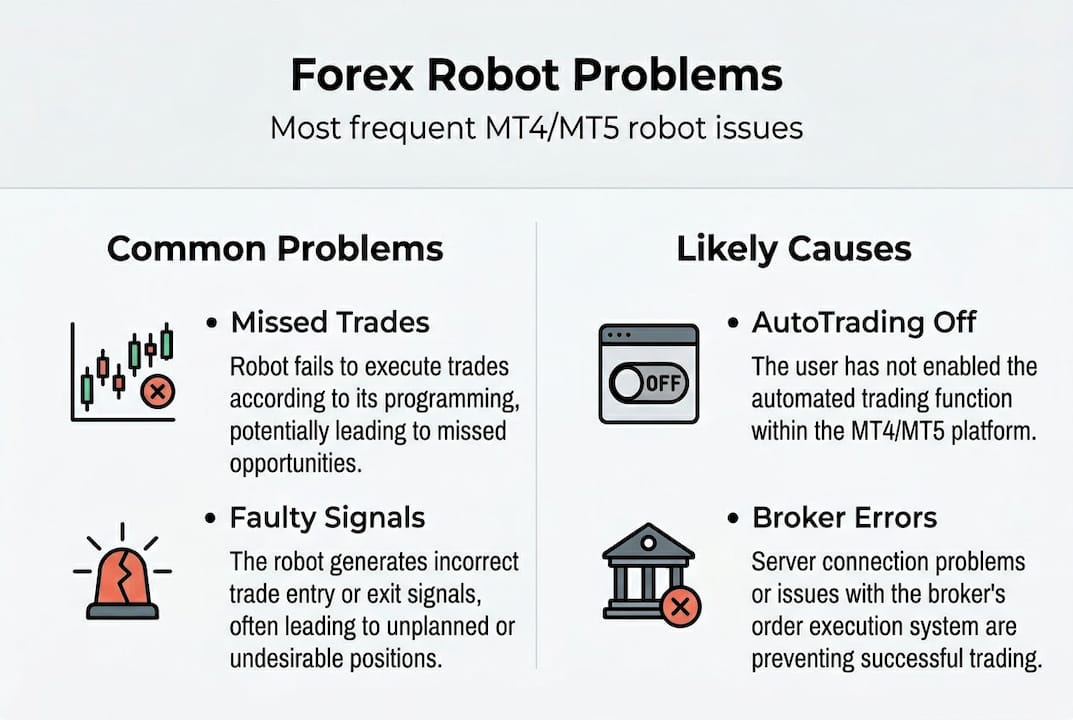
MT4 and MT5 both generate error codes in the Experts and Journal tabs of the terminal. These codes are your first diagnostic clue. Error 130 means invalid stops, error 138 means requote, and error 4051 points to an invalid lot size. Reading these codes instead of ignoring them saves hours of blind troubleshooting.
Environmental factors cause a surprising number of failures. A dropped internet connection mid-session, a broker server outage, or a change in your broker’s swap or margin settings can all stop a robot cold. Always check your connection and broker status before assuming the robot itself is broken.
Here is a quick reference for the most common issues traders face:
| Issue | Symptom | Likely cause |
|---|---|---|
| No trades executed | Robot runs, no orders placed | AutoTrading disabled or wrong symbol |
| Repeated error 130 | Invalid stop levels in log | Stop loss too close to price |
| Excessive slippage | Orders filled far from signal price | High volatility or slow execution |
| Robot disconnects | EA stops running mid-session | Internet drop or terminal crash |
| Wrong lot sizes | Positions too large or too small | Incorrect input parameters |
The most overlooked causes are the simplest ones. Check that the AutoTrading button is enabled in MT4/MT5. Confirm the robot is attached to the correct chart and timeframe. Verify that “Allow live trading” is checked in the EA settings. Reviewing common forex robot mistakes before assuming a deep technical fault often reveals that the fix takes under two minutes.
Pro Tip: Keep a dedicated text file listing the error codes your robot throws most often, along with the fix that worked. Over time, this becomes a personal troubleshooting manual faster than any generic guide.
Also watch for forex trading bot mistakes that are easy to miss, like running a robot on a VPS with the wrong timezone offset, which can cause it to trade outside its intended session window.
Step-by-step diagnostic process for MT4/MT5 robots
Systematic troubleshooting is the difference between fixing a problem in ten minutes and spending three days chasing the wrong cause. Here is a repeatable five-step workflow you can run every time your robot behaves unexpectedly.
- Check error messages first. Open the Experts tab in your MT4/MT5 terminal. Every robot action and failure is logged here. Look for the most recent error code and note the timestamp.
- Inspect the Journal tab. The Journal records platform-level events, including disconnections and server changes. If the Journal shows a reconnect event right before your robot stopped trading, the cause is connectivity, not code.
- Verify your connection and broker status. Ping your broker’s server from the terminal. Check the broker’s status page or social channels for reported outages. A stable connection is non-negotiable for automated trading.
- Test on a demo account. Replicate your live settings on a demo account and observe robot behavior in real time. This isolates whether the issue is account-specific or universal to the robot’s logic.
- Evaluate and reset settings. Compare your current input parameters against the robot’s documentation. Reset to default values and test again before making incremental changes.
This structured approach to optimizing automated trading on MT4/MT5 consistently reduces troubleshooting time and increases robot uptime. Traders who skip steps and jump straight to editing code often create new problems while the original one remains unsolved.

| Diagnostic check | Recommended action |
|---|---|
| Error code in Experts tab | Look up code, apply targeted fix |
| Reconnect events in Journal | Upgrade VPS or switch to wired connection |
| Demo test fails too | Issue is in robot logic or parameters |
| Demo test passes | Issue is account, broker, or live environment |
| Default settings fix the problem | Previous custom inputs were misconfigured |
Research on optimizing trading robots shows that a basic five-step checklist resolves the majority of robot failures without any code changes. Most problems are environmental or configurational, not fundamental flaws in the robot’s strategy. Jumping to code edits before completing these steps wastes time and introduces new risk.
For deeper issues, the guide on optimizing MT4 expert advisors covers advanced diagnostic techniques including strategy tester analysis and tick data review.
Fixing configuration and coding errors in forex robots
Once you have completed your diagnostic checklist and confirmed the issue is not environmental, it is time to look at configuration and code. Many robot failures are rooted in incorrect parameters or out-of-date code, and both are fixable without being a professional programmer.
Start with configuration before touching any code:
- Open the robot’s input settings. Right-click the EA on your chart and select Properties, then the Inputs tab. Review every parameter against the robot’s documentation or the developer’s recommended defaults.
- Reset to defaults. Click “Reset” in the Inputs tab to restore factory settings. This eliminates any accidental changes made during previous optimization attempts.
- Check symbol and timeframe compatibility. Some robots are coded for specific pairs or timeframes. Running a gold robot on EUR/USD, or a 1-hour robot on a 5-minute chart, produces erratic behavior by design.
- Update the robot’s code. If the developer has released an updated version, download and install it. Brokers change their server settings periodically, and older code may no longer be compatible.
- Use the MT4/MT5 MetaEditor to review the code. Open MetaEditor from the terminal, load your EA file, and use the built-in debugger to step through the logic. Look for hardcoded values that may conflict with your broker’s current conditions.
Warning: Never run a modified or unverified robot on a live account without completing a full demo test cycle. A single coding error in a live environment can trigger unintended trades, blow stop levels, or open positions at incorrect sizes. The risk is real and immediate.
For traders new to reading EA code, the guide on mastering MT4 expert advisors explains the structure of EA files in plain language, making it easier to spot obvious issues without advanced programming knowledge.
Pro Tip: Before editing any EA file, save a backup copy with the date in the filename. If your changes create new problems, you can restore the previous version instantly without losing your work.
Optimizing performance and preventing future robot failures
Fixing a broken robot is reactive. Preventing the next failure is where real trading efficiency comes from. Regular optimization and updates significantly boost the reliability and profitability of automated trading systems, and the process does not have to be complicated.
Here are the core practices that keep robots running at their best:
- Run backtests monthly. Market conditions shift. A robot optimized for last year’s volatility may underperform in today’s environment. Monthly backtests using recent data reveal drift before it becomes a live account problem.
- Review logs weekly. Scan the Experts and Journal tabs every week for recurring warnings or minor errors. Catching small issues early prevents them from compounding into major failures.
- Update your robot when the developer releases patches. Subscribe to the developer’s update channel or check their website regularly. Outdated code is one of the top causes of preventable failures.
- Monitor broker conditions. Spreads, swap rates, and margin requirements change. Set a calendar reminder to review your broker’s current conditions quarterly and adjust robot parameters accordingly.
- Document every change you make. Keep a simple trading log that records what you changed, when, and what result you observed. This creates a feedback loop that accelerates your troubleshooting skill over time.
Pro Tip: Use the built-in Strategy Tester in MT4/MT5 with the optimization mode enabled. It runs thousands of parameter combinations automatically and highlights the settings that produce the most consistent results across different market conditions. This is the same tool professional EA developers use before releasing updates.
For a broader understanding of what these systems are capable of, reviewing resources on boosting forex performance helps you set realistic benchmarks and spot when a robot is underperforming relative to its design.
Documentation is underrated. Every time you resolve a robot issue, write down the symptom, the cause, and the fix in a dedicated log. After six months, you will have a personalized troubleshooting reference that is more valuable than any generic forum thread.
Our perspective: Why most traders overlook systematic troubleshooting
Here is what we see repeatedly: a trader buys a well-reviewed robot, it stops working after two weeks, and they immediately blame the product. They switch to a new robot, the same thing happens, and the cycle repeats. The robot is rarely the core problem.
The real issue is that most traders have no troubleshooting process at all. They react emotionally to failures instead of investigating them methodically. Professional traders treat every robot malfunction as data, not disaster. They log it, diagnose it, and learn from it. That discipline compounds over time into a genuine edge.
Tracking your errors and the fixes that worked is not just good housekeeping. It is how you build pattern recognition that makes you faster and more accurate every time something goes wrong. Reviewing forex robot mistakes you can fix reveals that the majority of failures follow the same handful of patterns. Once you recognize them, you stop losing days to problems that take minutes to solve.
Systematic troubleshooting is not a technical skill. It is a mindset. Develop it, and your automation becomes far more reliable regardless of which robot you use.
Take your forex automation to the next level
If you have worked through this guide and your robot is running cleanly again, you are already ahead of most traders. But there is always room to push performance further.
At FxShop24, we offer detailed resources to help you optimize your trading robots and get the most from your MT4 or MT5 setup. If you want to understand the full potential of automation, start with our guide to learn about trading robots and see how modern EAs are built to perform. When you are ready to upgrade or find a more reliable system, you can explore top forex robots across our full catalog, each tested for real-market conditions and prop firm compatibility.
Frequently asked questions
What are the most common reasons forex robots fail to trade on MT4 or MT5?
Common robot failures stem from installation errors and wrong parameters, but broker mismatches and outdated code are equally frequent culprits. Always verify AutoTrading is enabled and the robot is attached to the correct chart before investigating deeper.
How can I quickly tell if the problem is in my robot or my broker/platform?
Error codes and log reviews are essential for pinpointing robot versus platform problems. If multiple robots show the same error simultaneously, the issue is almost certainly at the platform or broker level, not in any individual robot.
Should I always test changes in a demo account before using a robot live?
Yes, always use a demo account first to avoid real losses when troubleshooting or updating forex robots. Demo testing reduces risk from faulty robots and gives you a safe environment to confirm that your fix actually works before going live.
What tools can help optimize my forex robot’s performance?
Built-in MT4/MT5 optimization tools, log monitoring, and regular code reviews are essential for peak robot performance. Optimization and log tools greatly improve robot reliability when used consistently as part of a monthly maintenance routine.