
25
May
Beginner Guide to MT4 Automation That Actually Works
TL;DR:
- Manual forex trading is exhausting because traders spend hours analyzing charts, second-guessing entries, and letting emotions override rules. Many turn to MT4 automation, which uses Expert Advisors to execute trades automatically based on coded strategies without prior programming skills. Proper installation, testing, risk management, and ongoing supervision are essential for successful automated trading.
Manual forex trading is exhausting. You watch charts for hours, second-guess every entry, and let emotions override your own rules. That’s exactly why so many traders turn to MT4 automation. This beginner guide to mt4 automation walks you through everything you need to get started: what Expert Advisors actually are, how to install them, how to test them safely, and how to manage risk so a runaway bot doesn’t blow your account. No prior programming experience required.
Table of Contents
- Key takeaways
- Your beginner guide to MT4 automation starts here
- How to install and activate an EA in MT4
- Understanding the MQL4 code behind your EA
- Testing, optimizing, and deploying safely
- Managing risk and avoiding common pitfalls
- My honest take after years working with MT4 automation
- Ready to put your MT4 automation into practice?
- FAQ
Key takeaways
| Point | Details |
|---|---|
| EAs are your automation engine | Expert Advisors are programs attached to MT4 charts that execute trades automatically based on coded rules. |
| Installation follows a specific path | EA files go into the MQL4/Experts folder, then you restart MT4 and attach the EA to a chart. |
| Always test before going live | Use MT4’s Strategy Tester on a demo account before risking real money on any automated strategy. |
| Risk controls must be coded in | Stop losses, daily loss limits, and position caps need to be part of your EA logic, not an afterthought. |
| Automation requires supervision | Set-and-forget is a myth. You need to monitor your EA regularly and adjust when market conditions change. |
Your beginner guide to MT4 automation starts here
MetaTrader 4 (MT4) is a trading platform built by MetaQuotes. It has been the go-to platform for retail forex traders since 2005. The reason it stuck around is simple: it’s free, widely supported by brokers, and built for automation from the ground up. Most brokers offer it as their primary platform, which means your EA will work across dozens of trading accounts without modification.
The automation backbone of MT4 is the Expert Advisor (EA). Think of an EA as a trading assistant that never sleeps, never panics, and never deviates from its instructions. You define the strategy, the EA executes it. It monitors price, triggers entries and exits, manages lot sizes, and applies your risk rules, all without you clicking a single button.
There are two file types you’ll encounter when working with EAs:
- .mq4 files: The source code. Human-readable, written in MQL4. You can open and edit these in MetaEditor.
- .ex4 files: The compiled version. MT4 runs this file. You can’t read the code inside, but it’s what actually executes trades.
When you buy or download a pre-built EA, you’ll usually get an .ex4 file. If you build your own or want to customize, you’ll work with .mq4 files.
MT4 also supports two other automation tools worth knowing about. Scripts run once and stop. They’re useful for bulk order operations or one-time tasks. Indicators analyze price data and display visual signals but don’t place trades on their own. EAs are the ones that actually trade.
Pro Tip: Before you install any EA, check whether your broker allows automated trading on your account type. Some account tiers restrict it, and running an EA on a restricted account can cause unexpected errors.
How to install and activate an EA in MT4
Getting an EA running on MT4 takes about five minutes once you know the steps. Here’s the exact process:
- Open MT4 and click File in the top menu, then select Open Data Folder. This opens the directory where MT4 stores all its files.
- Navigate to MQL4 > Experts. This is where all EA files must live. Copy your .ex4 or .mq4 file directly into this folder.
- Close and restart MT4. This forces the platform to recognize the new file.
- Open the Navigator panel (press Ctrl+N if it’s hidden). You’ll see an Expert Advisors section. Your EA should appear there.
- Drag the EA from the Navigator onto any open chart. A configuration window will pop up.
- In the configuration window, go to the Common tab. Check the box that says Allow live trading. Without this, the EA can see price but cannot place orders.
- Click the AutoTrading button in the MT4 toolbar (it looks like a green play icon). This is the master switch. If it’s red or shows a stop symbol, your EA won’t trade regardless of its settings.
Common errors beginners run into during this process:
- Smiley face on the chart corner: A smiley face means the EA is attached and live trading is allowed. A sad face means something is blocking it, usually the AutoTrading button being off or live trading not checked.
- EA not visible in Navigator: The file is likely in the wrong folder or MT4 wasn’t restarted after placing the file.
- “Trade context busy” errors: This usually means another EA or script is already sending orders and the EA is waiting for clearance.
Pro Tip: Use the Fxshop24 installation guide for a visual walkthrough. Screenshots make the folder navigation much easier the first time.
Here’s a quick reference for EA file placement and activation settings:
| Step | Action | What to check |
|---|---|---|
| File placement | Copy to MQL4/Experts | Correct folder, correct file type |
| Platform restart | Close and reopen MT4 | EA appears in Navigator |
| Chart attachment | Drag EA onto chart | Configuration window opens |
| Live trading | Enable in Common tab | “Allow live trading” box checked |
| AutoTrading button | Click toolbar button | Button shows green/active state |
Understanding the MQL4 code behind your EA
You don’t need to become a programmer to use automation on MT4. But understanding the basic structure of an EA will save you enormous frustration when something goes wrong. Here’s a plain-English breakdown.
Every MQL4 EA is organized around three core event functions:
- OnInit(): Runs once when the EA is first attached to a chart. It sets up variables, loads settings, and runs any checks needed before trading starts.
- OnTick(): Runs every time the price changes. This is where the actual trading logic lives. The EA checks your entry conditions, evaluates open positions, applies exit rules, and sends orders, all within this function.
- OnDeinit(): Runs once when the EA is removed from the chart or MT4 closes. It handles cleanup tasks.
The core automation logic in a functioning EA lives almost entirely inside OnTick(). When you hear developers talk about “strategy logic,” that’s what they mean.
Before you write or modify any code, document your strategy in plain English first. Write out exactly when the EA should buy, when it should sell, what your stop loss is, and what your take profit target is. If you can’t explain your strategy in plain sentences, you can’t code it. This sounds obvious, but most beginner EA problems trace back to vague or incomplete strategy definitions.

The MetaEditor tool comes bundled with MT4. You can open it from MT4’s Tools menu. It has a built-in compiler, a syntax checker, and access to the MQL4 documentation. Even if you’re not writing code from scratch, MetaEditor lets you open an .mq4 file and adjust parameters like lot size, stop loss distance, or indicator periods without touching the core logic.
Pro Tip: Comment your code generously. Every time you change a parameter or add a condition, write a short note explaining why. Two months later, you’ll thank yourself. It also makes it far easier to spot bugs when the EA isn’t behaving as expected.
Testing, optimizing, and deploying safely
This section separates traders who succeed with automation from those who lose money quickly. Testing is not optional.
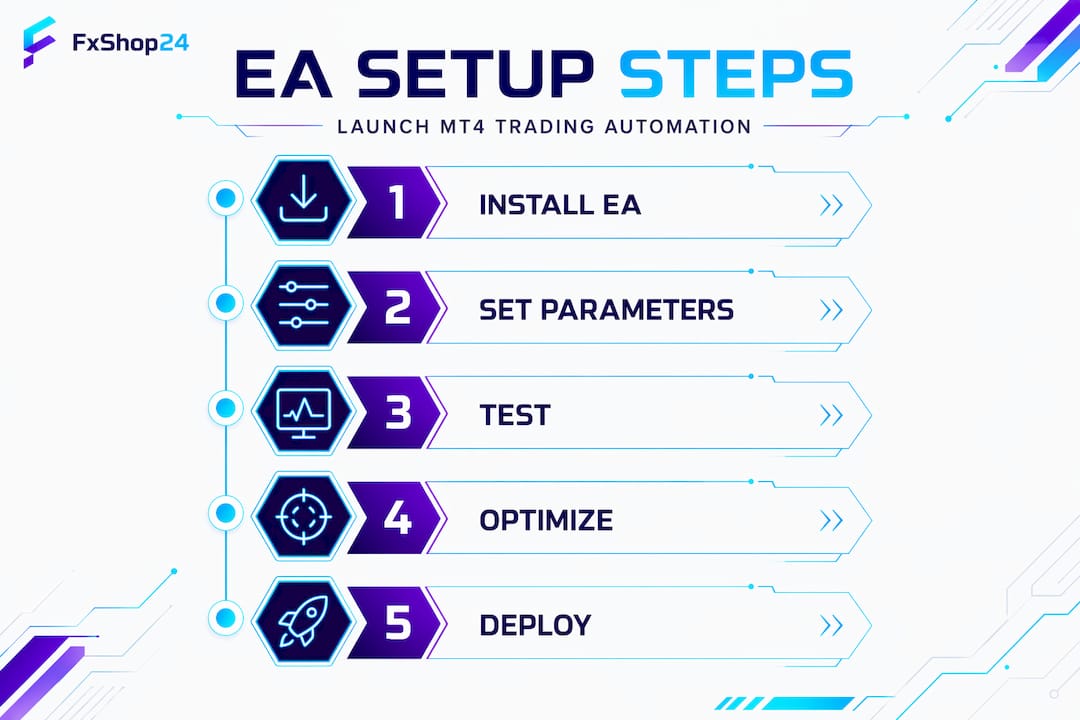
MT4 includes a built-in Strategy Tester. Access it from View > Strategy Tester. It lets you run your EA against historical price data to see how it would have performed. Strategy Tester supports three testing models, each with different speed and accuracy trade-offs:
| Testing model | Speed | Accuracy | Best for |
|---|---|---|---|
| Every tick | Slowest | Highest | Initial validation |
| Control points | Medium | Medium | Parameter tuning |
| Open prices only | Fastest | Lowest | Quick logic checks |
Start with “Every tick” mode for your first tests. It simulates every price movement using tick data, which gives you the most realistic picture of how the EA behaves, especially if your strategy uses tight stop losses or trades on short timeframes.
Once you have baseline results, you can use the Optimization feature to test different parameter combinations. Be careful here. Optimization can make an EA look spectacular on historical data and terrible in live markets. This is called overfitting. The EA has been tuned so specifically to past price patterns that it has no adaptability for new market conditions. To avoid it, always validate your optimized parameters on a separate date range that wasn’t used during optimization.
Running your EA on a demo account before going live is non-negotiable. A demo account matches your broker’s actual spreads and execution environment, which backtesting can’t fully replicate. Spend at minimum two to four weeks on demo to observe how the EA handles different market sessions, news events, and ranging conditions.
For deployment, a VPS (Virtual Private Server) changes everything. A VPS keeps your EA running 24/7 even when your personal computer is off. For advanced setups, OS-level task scheduling ensures MT4 restarts automatically after a reboot, which is more reliable than relying on a startup folder shortcut. Most forex-focused VPS providers offer low-latency servers located close to broker data centers, which reduces execution delays.
Pro Tip: Check your EA’s performance weekly at minimum during the first month. Look at your win rate, average trade duration, and drawdown curve. These three numbers will tell you faster than anything else whether the EA is performing as intended or drifting.
Managing risk and avoiding common pitfalls
Automation doesn’t remove risk. In some ways, it amplifies losses if your risk rules aren’t properly coded from the start. An EA can place dozens of trades in seconds. Without built-in constraints, a poorly configured bot can blow an account in a single session.
The risk parameters every beginner EA should include:
- A fixed stop loss on every order. Never let the EA trade without a stop.
- A maximum daily loss limit. When this threshold is hit, the EA stops opening new positions for the rest of the day.
- A maximum number of open positions at any time. This prevents pyramid-style stacking that snowballs during losing streaks.
- Position size constraints based on account balance, not fixed lot sizes, so exposure scales sensibly as your balance changes.
Automation is a tool, not a trading edge. The edge comes from your strategy. The EA just executes it faster and more consistently than you can manually.
The hardest lesson for most beginners is accepting that automation still requires attention. Traders must monitor systems and manage parameters because market conditions change. An EA optimized for a trending market will often lose during a prolonged ranging period. No EA works equally well in all conditions, and pretending otherwise is expensive.
Keep a trading log. Record every week’s performance, any parameter changes you made, and what market conditions were present. This log becomes your most valuable asset for improving your strategy over time.
My honest take after years working with MT4 automation
I’ve seen hundreds of traders come to MT4 automation with enormous expectations and leave frustrated within two months. Almost always, the issue wasn’t the platform or even the EA. It was the expectation that automation means passive income with no effort.
Here’s what I’ve learned after working with dozens of automated trading systems: the traders who succeed treat their EA like a business tool, not a vending machine. They test obsessively, adjust when the market shifts, and never risk more than they can afford to lose during the learning phase. Incremental learning and demo trading build the kind of confidence that actually holds up when real money is on the line.
My take on the biggest misconception in this space: people assume a high backtesting win rate means a reliable EA. It almost never does without real forward-testing validation. I’ve seen EAs with 90% backtest win rates fail immediately in live demo trading. The market is not a spreadsheet.
What actually works is starting small, staying curious, and treating every loss as data. The MT4 expert advisor guide at Fxshop24 is a resource I point beginners to specifically because it sets realistic expectations from page one, which is exactly what this space needs more of.
— FxShop24
Ready to put your MT4 automation into practice?
At Fxshop24, we’ve built resources specifically for traders who are serious about doing this right. Whether you’re installing your first EA or trying to stop a strategy from losing money, the guides and tools on the platform cut through the noise.
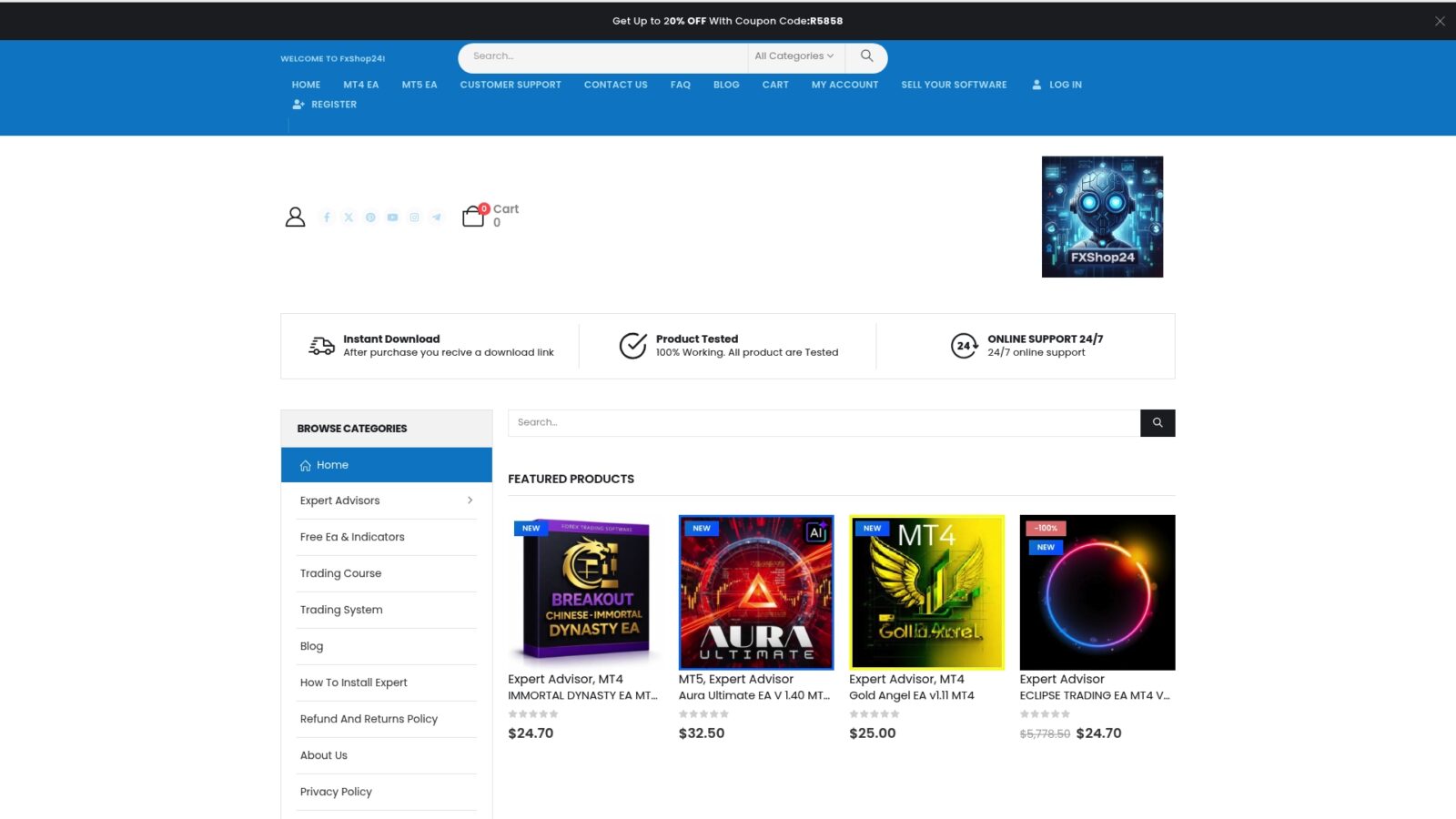
Start with the step-by-step EA installation guide if you haven’t gotten your first bot running yet. For traders who want to go deeper on protecting their capital, the automated trading risk management guide covers stop loss structures, daily drawdown limits, and position sizing in concrete detail. Every resource at Fxshop24 is written for traders who want to build something that actually lasts, not just something that looks good on a backtest.
FAQ
What is an Expert Advisor in MT4?
An Expert Advisor (EA) is a program that runs inside MT4 and trades automatically based on rules you define or a developer has coded. It can open, manage, and close trades without manual input.
Do I need coding skills to use MT4 automation?
No. You can install and run pre-built EAs without writing a single line of code. Basic familiarity with MT4’s interface and settings is enough to get started.
How long should I test an EA before trading live?
Test for at minimum two to four weeks on a demo account after backtesting. This gives you enough live market exposure across different sessions and conditions to evaluate real performance.
What is the AutoTrading button in MT4?
The AutoTrading button is the master on/off switch for all EAs on your MT4 platform. If it’s disabled, no EA will place trades regardless of individual EA settings.
Why is a VPS recommended for running EAs?
A VPS keeps your EA running continuously even when your computer is off or your internet connection drops. This prevents missed trades and protects open positions from being unmonitored.