



19
Apr
How to install trading systems on MT4 and MT5: step-by-step
TL;DR:
- Proper installation requires matching platform and file types, and verifying updates before trading.
- Troubleshooting common errors involves folder placement, platform permissions, and antivirus checks.
- Successful automation depends on disciplined testing, risk management, and continuous monitoring.
Automated trading systems promise consistency, but a botched installation can silently kill your edge before you ever place a trade. Plenty of traders copy files into the wrong folder, skip the verification step, or run a live EA without a single demo test. For prop firm traders, those mistakes can mean a failed challenge or a rule violation that costs real money. This guide walks you through every prerequisite, every installation step, every troubleshooting fix, and the optimization settings that separate traders who actually profit from automation from those who just collect EAs.
Table of Contents
- What you need before installing a trading system
- Step-by-step: Installing trading systems on MetaTrader 4 and 5
- Troubleshooting common installation errors
- Optimizing your trading system for prop firm or retail success
- The reality behind automated trading system installation
- Discover more automated trading solutions
- Frequently asked questions
Key Takeaways
| Point | Details |
|---|---|
| Correct file and folder | MT4 and MT5 require specific file types and folder paths for successful system installation. |
| Double-check platform settings | Verify permissions, enable trading, and refresh MetaTrader for live system operation. |
| Backtest before live use | Always test your trading systems thoroughly on a demo or through Strategy Tester to avoid surprises. |
| Address errors promptly | Troubleshoot typical issues like missing DLLs or Navigator refresh to ensure smooth activation. |
| Optimize for your goals | Adjust risk and configuration for prop or retail use, and use a VPS for maximum system uptime. |
What you need before installing a trading system
Before you touch a single file, take five minutes to confirm you have everything in order. Skipping this step is the number one reason traders end up troubleshooting for hours after a simple setup.
The very first thing to sort out is platform compatibility. MT4 uses .ex4 (compiled) and .mq4 (source code) files. MT5 uses .ex5 and .mq5 files. These formats are not interchangeable. Proper file type and platform matching is critical for successful installation, and attempting to load an .ex4 file into MT5 will produce nothing but errors. Check your file extensions before you do anything else.
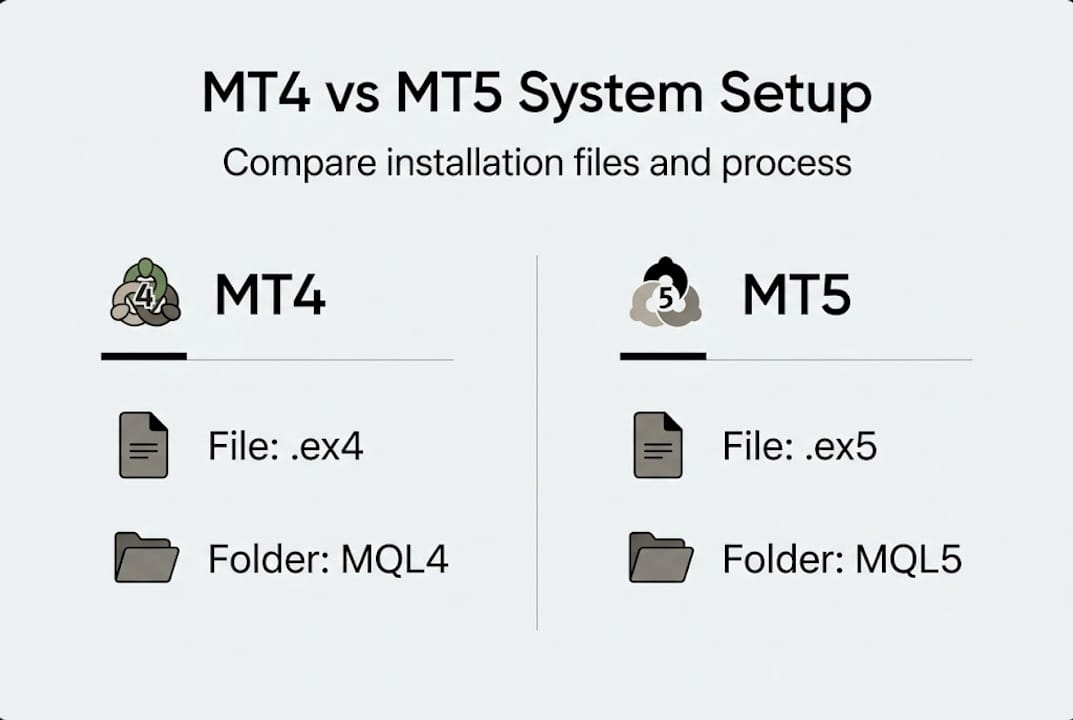
You also want to verify your platform version is up to date. Older builds of MT4 or MT5 can cause compatibility issues with newer EAs, especially those using advanced order management or news filter modules. Download the latest build directly from your broker’s website.
For a quick reference, here is what you need assembled before starting:
| Requirement | MT4 | MT5 |
|---|---|---|
| EA file type | .ex4 or .mq4 | .ex5 or .mq5 |
| Platform version | Build 1380+ | Build 3815+ |
| Demo account | Required | Required |
| Risk preset file | Recommended | Recommended |
| Backup of original files | Yes | Yes |
Beyond the files themselves, you need a demo account ready. Never skip straight to live trading with a new EA. Check the file requirements for MetaTrader to confirm your broker’s platform supports all the functions your EA uses, including tick data and order types.
Here is a checklist of what to gather before you start:
- Correct EA file (.ex4/.mq4 for MT4 or .ex5/.mq5 for MT5)
- Updated MetaTrader platform from your broker
- Demo account login credentials
- Risk preset or set file from the EA developer
- A backup copy of the original EA files stored separately
- Antivirus software to scan any downloaded file
For a full MT4 installation overview or guidance on adding EAs to MT5, we have dedicated resources that walk through each platform’s quirks in detail.
Pro Tip: Always scan downloaded EA files with antivirus software before opening them, and verify the developer’s digital signature if one is provided. Malicious code in fake EAs is a real and growing threat in the retail forex space.
Step-by-step: Installing trading systems on MetaTrader 4 and 5
With your essentials ready, follow these steps for seamless installation.
Installing on MT4:
- Open MT4 and go to File > Open Data Folder.
- Navigate to MQL4 > Experts inside that folder.
- Paste your .ex4 or .mq4 file into the Experts directory.
- Return to MT4, right-click the Navigator panel, and select Refresh.
- Drag the EA from the Navigator onto your preferred chart.
- In the EA settings dialog, go to the Common tab and check Allow live trading and Allow DLL imports (only if required).
- Click OK and confirm the smiley face icon appears in the top right corner of the chart. A frowning face means the EA is disabled.
- Open the Experts tab in the Terminal to review initialization logs.
Installing on MT5:
- Open MT5 and go to File > Open Data Folder.
- Navigate to MQL5 > Experts (note: different folder name from MT4).
- Paste your .ex5 or .mq5 file.
- Refresh the Navigator and drag the EA onto a chart.
- Under the Common tab, enable Allow Algo Trading.
- Verify the EA icon and check the Journal tab for confirmation messages.
The standard process for MT4 shares some similarities with MT5, but the folder structure and permission labels differ. Specifically, MT5 requires enabling Allow Algo Trading rather than the MT4 equivalent, which catches a lot of traders off guard.

Here is a side-by-side comparison of the key differences:
| Step | MT4 | MT5 |
|---|---|---|
| Data folder path | MQL4/Experts | MQL5/Experts |
| Trading permission label | Allow live trading | Allow Algo Trading |
| Confirmation icon | Smiley face | EA name in chart header |
| Log location | Terminal > Experts tab | Terminal > Journal tab |
For beginner’s MT4 setup tips or a full breakdown of detailed MT5 automation steps, those guides go deep into each platform’s specific behavior. You can also find solid MT4 EA installation guidance for additional visual walkthroughs.
Pro Tip: Always restart MetaTrader after adding a new EA file instead of just refreshing the Navigator. Some EA components, particularly DLL libraries, only load correctly on a full platform restart.
Troubleshooting common installation errors
If you run into issues, check these common pitfalls and solutions.
Even with careful installation, things go wrong. The good news is that most errors follow a predictable pattern. Initialization Failed errors often involve missing DLLs or wrong folder placement, which means the solution is usually straightforward once you know where to look.
Here are the most common problems and how to fix them:
- EA not visible in Navigator: You placed the file in the wrong folder or forgot to refresh. Double-check the MQL4/Experts or MQL5/Experts path and right-click to refresh the Navigator.
- Initialization Failed message: The EA cannot find a required DLL file. Confirm that all DLL files are placed in the correct Libraries subfolder within the Data Folder.
- Frowning face icon on chart: AutoTrading is disabled at the platform level. Click the AutoTrading button in the MT4/MT5 toolbar to activate it.
- EA loads but takes no trades: Check that the EA’s internal conditions are met, the correct chart timeframe is active, and the broker’s symbol name matches what the EA expects (for example, XAUUSD vs. GOLD).
- Antivirus blocking the EA: Add your MetaTrader Data Folder to your antivirus exclusion list. Some legitimate EAs use code patterns that trigger false positives.
For EAs that require external libraries, learn how to properly manage DLL imports for EAs before enabling that permission. Once your EA is stable, running a backtest on MT4 is your next critical verification step. For additional troubleshooting help, that resource covers edge cases not listed here.
Safety warning: Only enable DLL imports for expert advisors from developers you fully trust and have thoroughly researched. DLL files run native code on your machine, and a malicious DLL can compromise your entire system, not just your trading account.
Optimizing your trading system for prop firm or retail success
Installation is only step one. Here is how to optimize for safety and success.
Getting the EA installed is the easy part. Configuring it properly is where most traders leave money on the table or, worse, blow their prop firm account. Prop firms require conservative risk settings and thorough backtesting before any live use, and the firms that catch traders violating rules are getting better at identifying automated drawdown patterns.
For prop firm traders, focus on these configuration priorities:
- Set a hard daily loss limit inside the EA that stays within your firm’s threshold, typically 4% to 5% of account balance.
- Activate any built-in news filter to avoid trading during high-impact events, which many prop firms prohibit.
- Understand whether your firm uses static or dynamic drawdown rules. Static means the limit is fixed from your starting balance. Dynamic means it follows your equity peak.
- Keep lot sizes at 0.25% to 0.5% risk per trade, which gives you room to absorb losing streaks without hitting the drawdown wall.
For retail traders, the priorities shift slightly:
- Run a minimum of 10 years of historical data through the Strategy Tester before going live. Less data means your backtest is picking up short-term market conditions that may not repeat.
- Optimize parameters in the Strategy Tester but avoid over-fitting. If the EA only profits on one specific setting, it is fragile.
- Use a demo account for at least two to four weeks of live forward testing to confirm the EA behaves consistently with backtest results.
One of the most overlooked tools for EA stability is a VPS for 24/7 trading. A VPS keeps your EA running even when your computer is off, prevents slippage caused by internet drops, and ensures time-sensitive strategies execute at the right moment. The guide on using a VPS for EAs walks through the entire setup process. For a deeper look at testing EAs before going live, that process deserves its own dedicated attention.
Pro Tip: Maintain a simple trading journal that logs every week’s EA performance, including win rate, drawdown, and any unusual behavior. Patterns that seem random in the moment often reveal systematic issues when you look back over weeks of data.
The reality behind automated trading system installation
Here is what separates traders who succeed with automation from those who cycle endlessly through new EAs: the winners are not smarter about software. They are more patient with process.
Most installation problems stem from rushing. Traders skim setup guides, skip the demo phase, and assume a working trade is proof of a working system. It is not. A single profitable week on a live account tells you almost nothing about long-term edge.
The traders we see getting real results from truly mastering MetaTrader automation are the ones who read every log entry, test every parameter change on a demo first, and treat their EA like a business process rather than a lottery ticket. They catch the subtle issues early, like a spread filter that stops working during news events or a lot size calculation that compounds too aggressively.
Switching EAs every month because one had a bad week is the automation equivalent of panic selling. Invest in process mastery. The system matters less than the discipline you bring to running it.
Discover more automated trading solutions
Ready to take the next step with your trading automation? At FxShop24, we have built a library of resources and battle-tested systems specifically for traders who want reliable, prop-firm-ready automation on MT4 and MT5.
Explore our comprehensive guide to automated futures trading to understand how different system types perform across market conditions. If you are still deciding which EA fits your style, our breakdown of essential MT4/MT5 system types covers the major categories in plain language. You can also start with our overview of trading robots to understand the core mechanics before committing to a system. Every product we offer comes with installation support and lifetime updates.
Frequently asked questions
What file type do I need for installing a trading system on MT4 or MT5?
MT4 requires .ex4 or .mq4 files, while MT5 uses .ex5 or .mq5 files. MT4 and MT5 require different file formats, so always confirm which platform you are running before downloading any EA.
Why don’t I see my trading system after copying it into MetaTrader?
You likely placed the file in the wrong folder or skipped the Navigator refresh step. Wrong folder or missing refresh is one of the top causes for EAs not appearing, and your antivirus may also be quarantining the file silently.
Is it safe to allow DLL imports in MetaTrader?
Only allow DLL imports for expert advisors from developers you have fully vetted. DLL imports should be used only when the EA requires them and when you are confident the source is trustworthy.
Do I need a VPS for my trading system to run 24/7?
A VPS keeps your EA running even when your computer shuts down, which is critical for time-sensitive strategies. VPS is recommended to prevent outages and maximize EA uptime, especially for strategies trading Asian or overnight sessions.