
6
Mar
Trading system installation guide: set up automated trading 2026
Many retail traders fail to properly install Expert Advisors on MetaTrader, losing valuable opportunities and facing frustration. Correct installation goes beyond copying files. It demands precise configuration, thorough testing, and attention to detail to ensure your automated trading system runs reliably. This guide delivers step by step instructions to help you confidently set up your trading system, optimize performance, and start trading with automation that actually works.
Table of Contents
- Prerequisites And What You Need Before Installation
- Step By Step Installation Process
- Configuring Auto Trading Settings And Safety Measures
- Backtesting, Optimization, And Running Your Trading System
- Common Installation Mistakes And Troubleshooting
- Expected Outcomes And Performance Benchmarks
- Explore Essential Trading Software And Automated Systems
- Frequently Asked Questions
Key takeaways
| Point | Details |
|---|---|
| Proper installation requires correct EA file placement, platform restart, and enabling auto trading permissions both globally and per EA. | Missing any step causes silent failures where your EA appears installed but never executes trades. |
| Testing and optimizing Expert Advisors in demo mode reduces risks before live use. | Backtesting with historical data and forward testing on demo accounts validate strategy performance without risking capital. |
| Common errors include disabled auto trading and incorrect folder placement, causing most setup failures. | Verify global AutoTrading button is green and EA specific permissions are enabled to prevent inactive bots. |
| Using a VPS ensures near 24/7 uptime and reduces missed trades. | Setting up a Virtual Private Server to run MetaTrader offers improved uptime and fewer missed opportunities. |
| MetaTrader 5 offers faster multi threaded optimization over MetaTrader 4, supporting complex strategies. | MT5 can run optimization tests up to 10 times faster, ideal for traders managing diverse portfolios or sophisticated EAs. |
Prerequisites and what you need before installation
You must have MetaTrader 4 or MetaTrader 5 installed and updated to the latest version for compatibility and security. Obtain Expert Advisor files (.ex4 for MT4, .ex5 for MT5) only from trusted, verified vendors to avoid malware or unreliable robots. Have a broker account authorized for automated trading with required permissions enabled by your broker.
Basic familiarity with MetaTrader navigation is essential to place files and configure settings correctly. Consider using a Virtual Private Server to run MetaTrader 24/7, ensuring your EAs operate uninterrupted regardless of your local computer status. Always back up your existing MetaTrader profiles and settings before installation to prevent data loss or configuration errors.
Before you begin, gather these essentials:
- Updated MetaTrader platform (version 4 or 5)
- Valid EA files from reputable sources
- Broker account with automated trading permissions
- Basic understanding of MetaTrader interface
- Optional but recommended: VPS service for continuous operation
Pro Tip: Check your MetaTrader setup guide to ensure your platform is correctly configured before adding any Expert Advisors, saving time and avoiding compatibility issues.
Step by step installation process
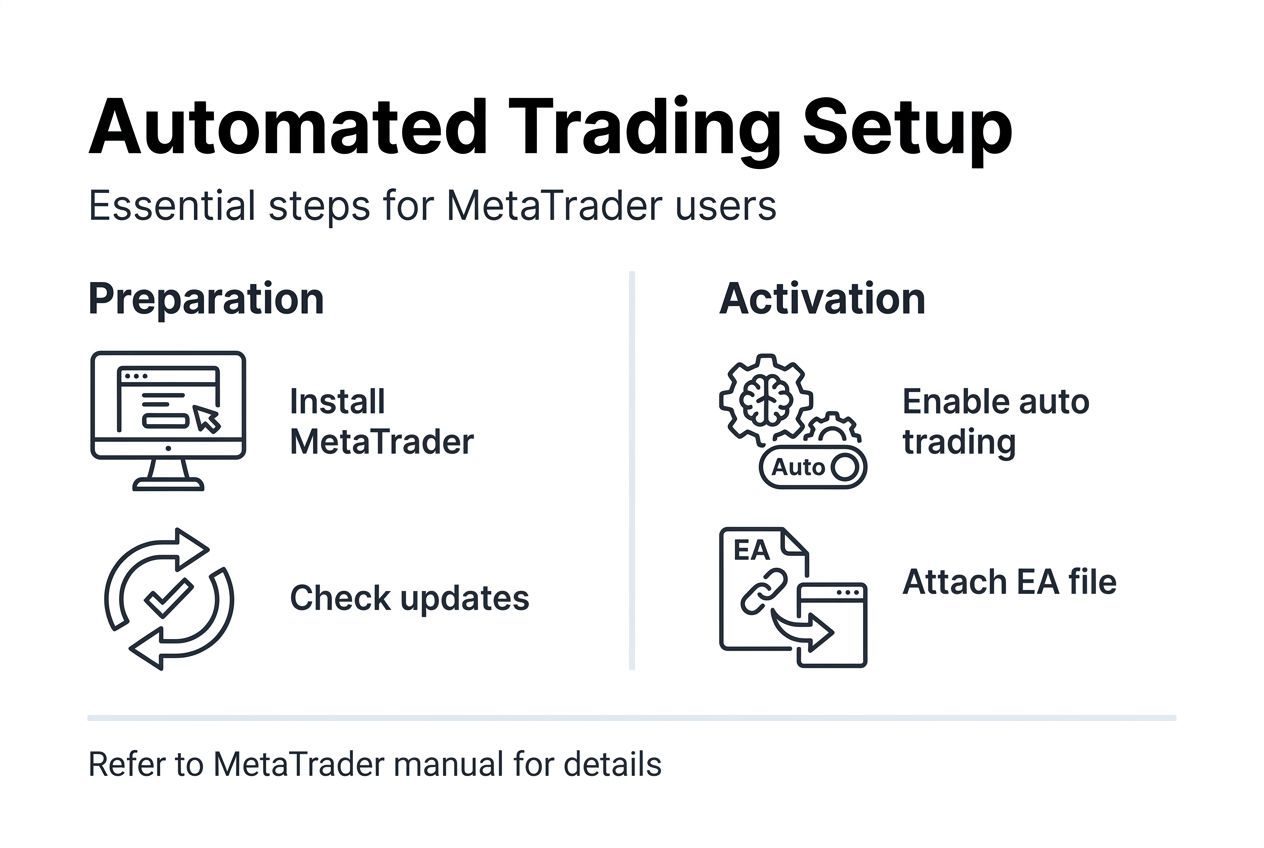
Open your MetaTrader platform and navigate to File > Open Data Folder to access the program files. Copy your EA files (.ex4 for MT4, .ex5 for MT5) into the MQL4/Experts or MQL5/Experts folder accordingly. Restart MetaTrader to load the new Expert Advisors into the platform environment.
Check the Navigator pane in MetaTrader to verify that your EAs appear under the Expert Advisors section. Attach an EA to a chart by dragging it or right clicking the EA and selecting Attach to a chart. In the EA properties window, enable Allow live trading to permit the EA to execute trades.
Ensure the global AutoTraading button in the MetaTrader toolbar is green and active for automated strategies to operate. Common errors in automated trading setup include forgetting to enable global and EA specific auto trading permissions, placing files in wrong directories, and not restarting MetaTrader after installation.
Follow these steps in exact order:
- Open MetaTrader and select File > Open Data Folder
- Navigate to MQL4/Experts (MT4) or MQL5/Experts (MT5)
- Copy your EA files into the Experts folder
- Close and restart MetaTrader completely
- Open Navigator pane and locate your EA under Expert Advisors
- Drag the EA onto your desired trading chart
- In the properties dialog, check Allow live trading
- Verify the global AutoTrading button turns green
Pro Tip: Restarting MetaTrader after placing EA files is critical. Failure to do so is a common installation mistake leading to invisible or inactive bots. For detailed visual guidance, consult a trading robot setup guide to see screenshots of each step.
Configuring auto trading settings and safety measures
In MetaTrader, go to Tools > Options > Expert Advisors tab to access global EA settings. Enable Allow automated trading at the platform level to permit all EAs to place trades. Activate safety options such as disabling automated trading when switching accounts or symbols to prevent unintended trades.
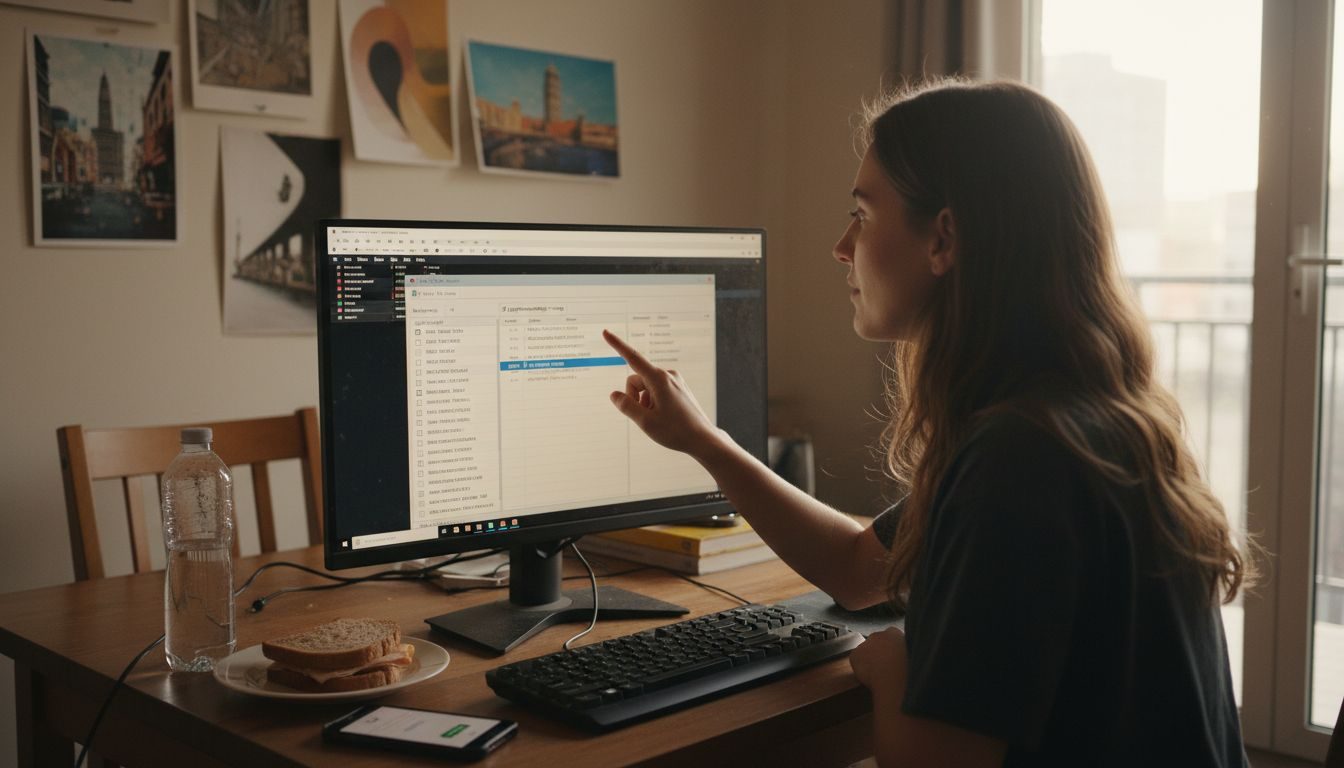
On each EA’s properties tab (accessible by right clicking the chart and selecting Expert Advisors > Properties), check Allow live trading and Allow DLL imports if required by the EA. The global AutoTrading button must be active and green for the overall automated trading permission to be valid. Always verify these settings after installation to avoid silent failure of your trading robots.
Double check that the broker account supports auto trading, as some brokers disable this feature by default. Understanding why use expert advisors helps you appreciate the importance of proper configuration for consistent automated execution.
Key settings to configure:
- Tools > Options > Expert Advisors: Enable Allow automated trading
- Enable safety options to disable auto trading when switching accounts or symbols
- EA properties: Check Allow live trading for each individual EA
- EA properties: Enable Allow DLL imports if your EA requires external libraries
- Verify global AutoTrading button displays green status
- Confirm broker permits automated trading on your account type
Pro Tip: Keep safety options enabled that stop auto trading if you switch symbols or accounts. This prevents errors during manual adjustments and protects you from unintended trade execution.
Backtesting, optimization, and running your trading system
Use MetaTrader’s Strategy Tester tool to backtest your EA using historical market data, gauging how it would have performed in the past. Optimize EA input parameters to improve performance metrics such as profit factor, drawdown, and total net profit. MT5 supports multi threaded strategy tester optimization, which significantly decreases the time required to find optimal parameters compared to MT4’s single threaded backtesting.
After backtesting and optimization, apply the best parameter sets to your demo account for live environment simulation. Monitor EA behavior closely on demo accounts to validate consistent trade execution and to identify any unexpected errors. Only proceed to live trading with real money after gaining confidence from thorough testing and optimization.
Regularly revisit optimization as markets evolve to maintain EA effectiveness over time. The automated trading workflow provides structured guidance on moving from testing to live deployment safely.
Follow this testing sequence:
- Open Strategy Tester in MetaTrader (View > Strategy Tester)
- Select your EA and configure test parameters (symbol, timeframe, date range)
- Run initial backtest with default settings to establish baseline performance
- Use optimization mode to test parameter variations and identify best settings
- Analyze results focusing on profit factor, maximum drawdown, and consistency
- Apply optimized settings to demo account for forward testing
- Monitor demo performance for at least 2 to 4 weeks before live deployment
- Transition to live account with small position sizes initially
| Feature | MetaTrader 4 | MetaTrader 5 |
|---|---|---|
| Backtesting speed | Single threaded, slower | Multi threaded, up to 10x faster |
| Optimization | Sequential parameter testing | Parallel processing of multiple parameters |
| Historical data | Limited tick data accuracy | Improved tick data precision |
| Asset classes | Primarily forex | Forex, stocks, futures, options |
| Testing modes | Every tick, control points, open prices | Every tick, 1 minute OHLC, math calculations |
Pro Tip: Save your optimized parameter sets with descriptive names so you can quickly revert to proven configurations if market conditions change or if you need to reinstall your EA.
Common installation mistakes and troubleshooting
A frequent mistake is neglecting to enable Allow automated trading globally and per EA, causing bots not to execute trades. Placing EA files in incorrect folders or forgetting to restart MetaTrader prevents EAs from loading properly. Failing to check the AutoTrading button’s status (needs to be green) results in disabled automation despite correct installation.
Using EAs from unverified or pirated sources leads to performance issues or security risks. Review MetaTrader log files and EA error messages to diagnose problems and identify specific setup errors. Verify broker account permissions and that your broker supports automated trading features.
Consult MetaTrader community forums or trusted tutorials for solutions to uncommon problems. The MT5 troubleshooting guide offers detailed diagnostics for platform specific issues.
Most common errors and fixes:
- AutoTrading button gray or inactive: Click the button to turn it green, ensuring global permissions are active
- EA not visible in Navigator: Verify files are in correct Experts folder and restart MetaTrader completely
- EA attached but no trades execute: Check both global and EA specific Allow live trading permissions
- Error messages about DLL imports: Enable Allow DLL imports in EA properties if your EA requires external libraries
- Broker restrictions: Contact broker support to confirm automated trading is permitted on your account type
- Wrong file format: Ensure .ex4 files for MT4 and .ex5 files for MT5 (source .mq4/.mq5 files must be compiled first)
- Outdated platform version: Update MetaTrader to latest build to ensure compatibility with modern EAs
Check the Experts tab in the MetaTrader Terminal window for real time log messages. These logs reveal specific errors like invalid stops, insufficient margin, or connection issues. Taking screenshots of error messages helps when seeking support from EA vendors or online communities.
Expected outcomes and performance benchmarks
Initial installation and testing can be completed within 30 to 60 minutes by users with basic MetaTrader experience. Full optimization and performance tuning on live accounts often extend over 1 to 4 weeks to reach stable and profitable setups. Automated trading systems eliminate emotional biases, enabling consistent strategy execution and reducing emotional trading errors by up to 30%.
Running MetaTrader on a VPS dramatically improves uptime, minimizing missed trades and slippage. Performance varies by EA quality and continuous monitoring is essential to adapt to changing market conditions. The MT4 vs MT5 performance benchmarks guide platform choice based on your specific trading requirements.
Realistic timelines and expectations:
| Milestone | Timeframe | Expected Outcome |
|---|---|---|
| Initial installation | 30 to 60 minutes | EA appears in Navigator, attaches to charts, permissions configured |
| Backtesting and optimization | 2 to 5 days | Identified optimal parameters, historical performance validated |
| Demo account testing | 2 to 4 weeks | Consistent execution confirmed, real time behavior observed |
| Live account deployment | Ongoing | Gradual position size increase, continuous performance monitoring |
| Full optimization cycle | 1 to 3 months | Stable automated trading with periodic parameter adjustments |
Performance improvements vary significantly based on EA quality, market conditions, and your trading discipline. Well designed EAs reduce emotional decision making, improve execution speed, and enable 24/7 market monitoring. However, no EA guarantees profits, and losses remain possible even with optimized automation.
Explore essential trading software and automated systems
Discover the variety of automated trading systems optimized for MetaTrader 4 and 5 to boost your trading effectiveness. Whether you need scalping EAs, trend following robots, or AI powered systems, choosing the right tools makes installation worthwhile.
Access detailed trading software setup guides and workflows to streamline your trading operations and maximize your profitability. Explore expert recommended tools specifically tailored for forex and gold markets to support your trading success. Master the complete forex gold trading workflow from strategy selection through live deployment, ensuring every step of your automated trading journey is optimized for consistent results.
Frequently asked questions
How do I know if my Expert Advisor is correctly installed?
Verify the EA appears in MetaTrader’s Navigator pane under Expert Advisors and is attached to a chart with Allow live trading enabled. Check that the global AutoTrading button is active and green. Look for the EA’s name displayed in the upper right corner of your chart with a smiley face icon, indicating it’s running correctly.
What should I do if my EA does not execute trades after installation?
Ensure global and per EA settings enable Allow automated trading in Tools > Options > Expert Advisors. Confirm the AutoTrading button on the platform toolbar is green and active. Verify EA files are correctly placed in the Experts folder and MetaTrader has been restarted after installation. Check broker permissions to allow automated trading and consult log files in the Experts tab for specific error messages.
Which platform is better for automated trading: MetaTrader 4 or MetaTrader 5?
MT5 supports multi threaded backtesting and more asset classes, making it better for complex strategies and faster optimization. MT4 remains popular due to simplicity and vast existing EA ecosystem, especially for forex only traders. Choice depends on your trading goals, portfolio complexity, and preference for speed versus ease of use. Review the detailed MT4 vs MT5 comparison to make an informed decision based on your specific needs.
Can I run multiple Expert Advisors simultaneously on one MetaTrader platform?
Yes, you can attach different EAs to multiple charts within the same MetaTrader instance. Each EA operates independently on its assigned chart and symbol. Ensure your computer or VPS has sufficient processing power and memory to handle multiple EAs running concurrently without performance degradation.
How often should I update or re optimize my Expert Advisor settings?
Re optimize your EA parameters every 3 to 6 months or when you notice significant performance degradation. Market conditions evolve, and settings that worked previously may become less effective. Regular optimization helps maintain consistent performance, but avoid over optimization based on recent data alone, as this can lead to curve fitting and poor future results.
Recommended
- Trading Robot Setup Guide: Master MetaTrader Automation
- Workflow For Forex Automation: Step-by-Step Trading Setup
- Trading Software Setup Guide For MetaTrader Success
- Guide To Optimizing Automated Trading On MT4 And MT5: Boost Profits 30%
- SeeRM | Affärssystemtrender 2026: AI minskar administration 40%
- Automated WordPress Testing: Boosting Site Reliability - WPCTO