



18
Feb
Trading Software Setup Guide for MetaTrader Success
The process of setting up MetaTrader software often feels overwhelming for traders aiming to improve their automated strategies. Every step matters because even minor details can impact your trading performance and reliability. This guide helps you build a secure foundation by walking through requirements, platform installation, expert advisor activation, and precise configuration. By mastering these core steps, you can unlock the full potential of MetaTrader 4 and MetaTrader 5 for smarter trading decisions.
Table of Contents
- Step 1: Prepare Your Computer And Trading Account
- Step 2: Download And Install MetaTrader 4 Or 5
- Step 3: Import And Activate Trading Software
- Step 4: Configure Expert Advisor And Indicator Settings
- Step 5: Test And Verify Software Functionality
Quick Summary
| Key Point | Explanation |
|---|---|
| 1. Ensure Computer Meets Requirements | Your computer should have at least a 2.0 GHz processor, 512 MB RAM, and specific screen resolution for smooth trading. |
| 2. Choose a Reliable Broker | Select a broker offering MetaTrader access, demo accounts, and good customer support to start trading confidently. |
| 3. Download Authorized Version of MetaTrader | Always download MetaTrader from official sources to guarantee software security and compatibility with your operating system. |
| 4. Import Expert Advisors Correctly | Place trading software files in the right directories to ensure compatibility with your MetaTrader and prevent errors. |
| 5. Comprehensive Testing Is Crucial | Validate your automated trading software through rigorous testing to minimize risk and enhance strategy performance in live trading. |
Step 1: Prepare your computer and trading account
Successfully setting up your trading platform begins with preparing your computer and establishing a robust trading account. This crucial first step ensures you have a stable technical environment and the right financial infrastructure to start automated trading.
To get started, your computer must meet specific system requirements. You’ll need a Windows operating system (2000 or later), a processor running at 2.0 GHz or faster, at least 512 MB of RAM, and a screen resolution of 1024 x 768 or higher. These specifications will help guarantee smooth performance when running MetaTrader software and trading robots.
Before diving into installation, select a broker that provides MetaTrader server access. Many platforms offer demo accounts for initial setup, which allows you to practice without risking real funds. When choosing a broker, consider factors like:
- Trading instrument availability
- Spread and commission rates
- Server reliability
- Regulatory compliance
- Customer support quality
Once you’ve selected a broker, you’ll need to complete their account registration process. This typically involves providing personal information, verifying your identity, and selecting your preferred account type. For new traders, starting with a demo account is recommended to familiarize yourself with the platform’s features.
A stable and secure trading environment is the foundation of successful automated trading strategies.
Pro tip: Always use a dedicated computer for trading to minimize potential system interruptions and optimize performance.
Step 2: Download and install MetaTrader 4 or 5
Downloading and installing MetaTrader is a straightforward process that sets the foundation for your automated trading journey. Whether you choose MetaTrader 4 or 5, the installation steps are similar and designed to get you trading quickly.
To begin, download the platform from official sources, ensuring you select the version compatible with your operating system. MetaTrader supports Windows 7 or higher, and macOS 10.12 or newer. Before downloading, verify your system meets these minimum requirements:
- Adequate RAM (minimum 512 MB)
- Sufficient storage space
- Compatible operating system
- Stable internet connection
Once downloaded, run the installer with administrator privileges. The setup wizard will guide you through the installation process. You’ll need to:
- Accept the license agreement
- Choose your installation directory
- Complete the installation
- Launch the platform
Choosing the right MetaTrader version can significantly impact your trading experience and strategy execution.
After installation, the platform will automatically update to the latest version. You’ll then be prompted to either create a new demo account or log into an existing trading account with your broker.
Here’s a quick comparison of MetaTrader 4 and MetaTrader 5 to guide your platform choice:
| Platform Feature | MetaTrader 4 | MetaTrader 5 |
|---|---|---|
| Market Coverage | Primarily Forex | Forex, Stocks, Commodities |
| Supported Order Types | Basic (4 types) | Advanced (6 types) |
| Built-in Indicators | 30 | 38 |
| Timeframes Available | 9 | 21 |
| Strategy Tester | Single-threaded | Multi-threaded, Multi-currency |
| Custom Scripting | MQL4 | MQL5 |
Pro tip: Always download MetaTrader directly from official broker websites or the MetaQuotes official site to ensure software authenticity and security.
Step 3: Import and activate trading software
Importing and activating your trading software is a critical step that transforms your MetaTrader platform from a basic application into a powerful trading tool. This process involves carefully loading your chosen trading instruments, indicators, and automated strategies.
To begin, you’ll want to import expert advisor files into your MetaTrader platform. Most trading systems come with specific files that need to be placed in the correct directories:
- Navigate to the MetaTrader installation folder
- Locate the “MQL4” or “MQL5” subdirectory
- Create separate folders for:
- Experts (trading robots)
- Indicators
- Libraries
- Scripts
When importing trading robots or expert advisors, pay close attention to file compatibility. Ensure the EA matches your MetaTrader version and trading platform requirements. Some key considerations include:
- Check the file extension (.ex4 or .ex5)
- Verify the trading instrument compatibility
- Review recommended broker settings
- Test in demo mode before live trading
Successful software activation requires meticulous attention to technical details and compatibility.
Pro tip: Always create backup copies of your original trading files before importing new software to prevent potential configuration losses.
Step 4: Configure expert advisor and indicator settings
Configuring your expert advisor and indicator settings is a critical step in customizing your trading platform for optimal performance. This process allows you to fine-tune your automated trading strategies and visual indicators to match your specific trading approach.
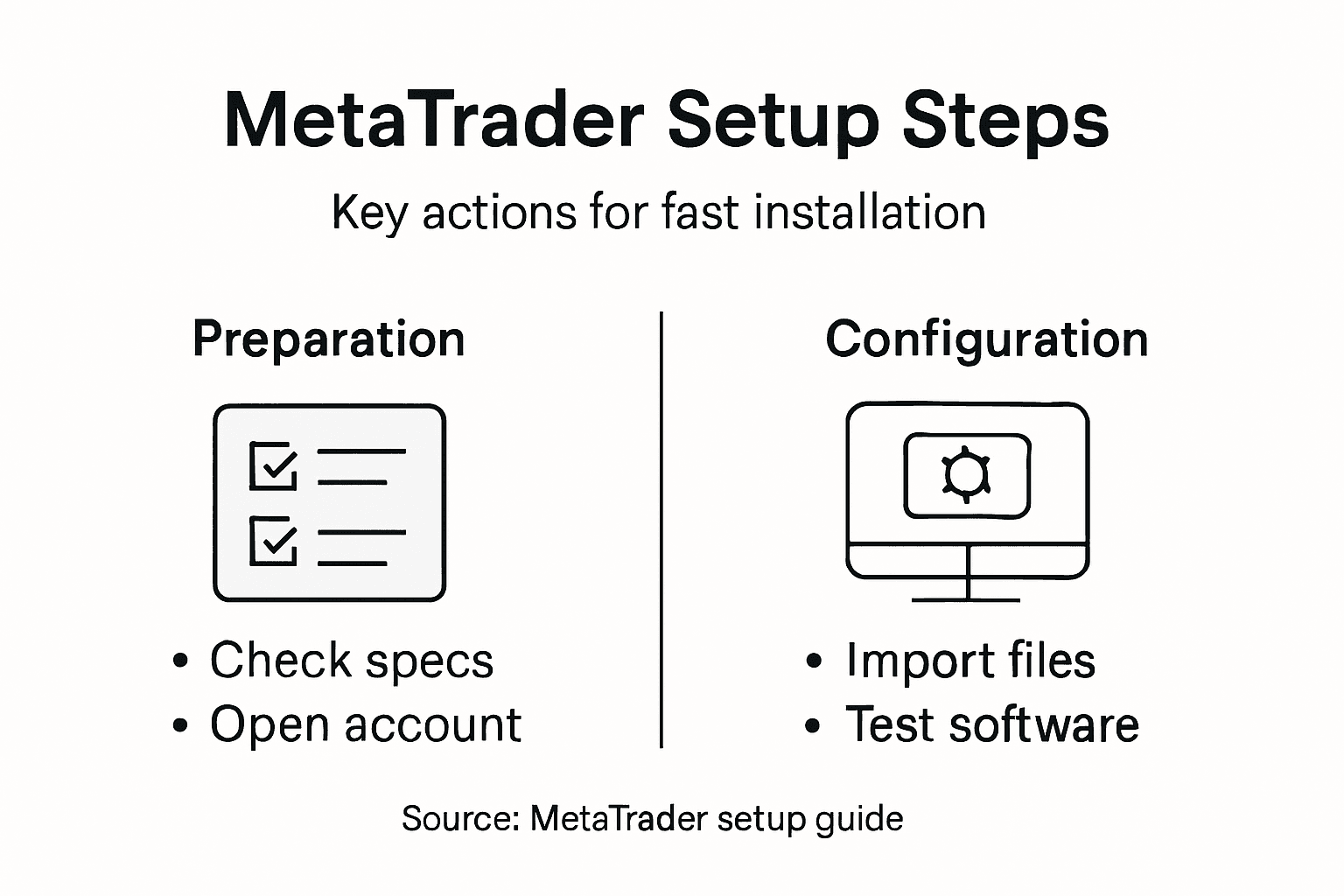
MetaTrader configuration settings provide granular control over your trading tools. To access these settings, you’ll need to navigate through several key configuration areas:
- Right-click on the chart with the indicator or EA
- Select ‘Indicators List’ or ‘Expert Advisors’ > ‘Properties’
- Explore configuration tabs:
- Common settings
- Input parameters
- Color customization
- Visualization controls
When configuring expert advisor parameters, pay close attention to critical settings:
- Enable or disable DLL imports
- Set live trading permissions
- Adjust individual input variables
- Configure timeframe compatibility
Precision in configuration determines the effectiveness of your automated trading strategy.
Each setting requires careful consideration, as minor adjustments can significantly impact trading performance. Always test configurations in a demo environment before applying them to live trading accounts.
Pro tip: Create multiple configuration profiles to quickly switch between different trading strategies without repeatedly reconfiguring your expert advisors.
Step 5: Test and verify software functionality
Testing and verifying your trading software’s functionality is a crucial step that separates successful traders from amateur enthusiasts. This process ensures your expert advisor performs reliably across different market conditions before risking real capital.
MetaTrader’s Strategy Tester provides a comprehensive platform for evaluating trading robots and indicators. The testing process involves several critical stages to validate your software’s performance:
- Run historical market data simulations
- Analyze performance metrics
- Check risk management parameters
- Evaluate trade execution logic
When conducting your software evaluation, focus on these key performance indicators:
- Total net profit
- Maximum drawdown percentage
- Win rate and profit factor
- Risk-reward ratio
- Trade consistency
Comprehensive testing involves multiple verification methods:
- Visual mode testing: Observe real-time strategy behavior
- Multi-currency testing: Validate performance across different markets
- Forward testing: Simulate potential future market scenarios
- Cloud network optimization: Leverage distributed computing for enhanced analysis
Rigorous testing is the foundation of a reliable automated trading strategy.
Remember that no testing method guarantees future performance, but thorough validation significantly reduces potential risks.
Pro tip: Create multiple testing scenarios with varied market conditions to ensure your expert advisor’s adaptability and robustness.
This summary table outlines key best practices for safe and efficient automated trading setup:
| Best Practice | Benefit | When to Apply |
|---|---|---|
| Use dedicated trading computer | Minimizes system interruptions | Before starting |
| Test on demo account | Reduces real money risk | Before live trading |
| Backup trading files | Prevents loss of custom configurations | Before software import |
| Create config profiles | Enables fast strategy switching | During platform setup |
| Run scenario-based tests | Ensures strategy robustness | Throughout software use |
Unlock Seamless MetaTrader Success with FxShop24
Setting up your trading software can be complex and full of challenges like compatibility issues, precise configuration, and thorough testing as highlighted in the “Trading Software Setup Guide for MetaTrader Success.” You want to ensure your expert advisors (EAs) and indicators run smoothly on MetaTrader 4 or 5 with reliable performance under any market condition. This critical foundation requires not only a proper setup but access to trusted automated tools designed specifically for these platforms.
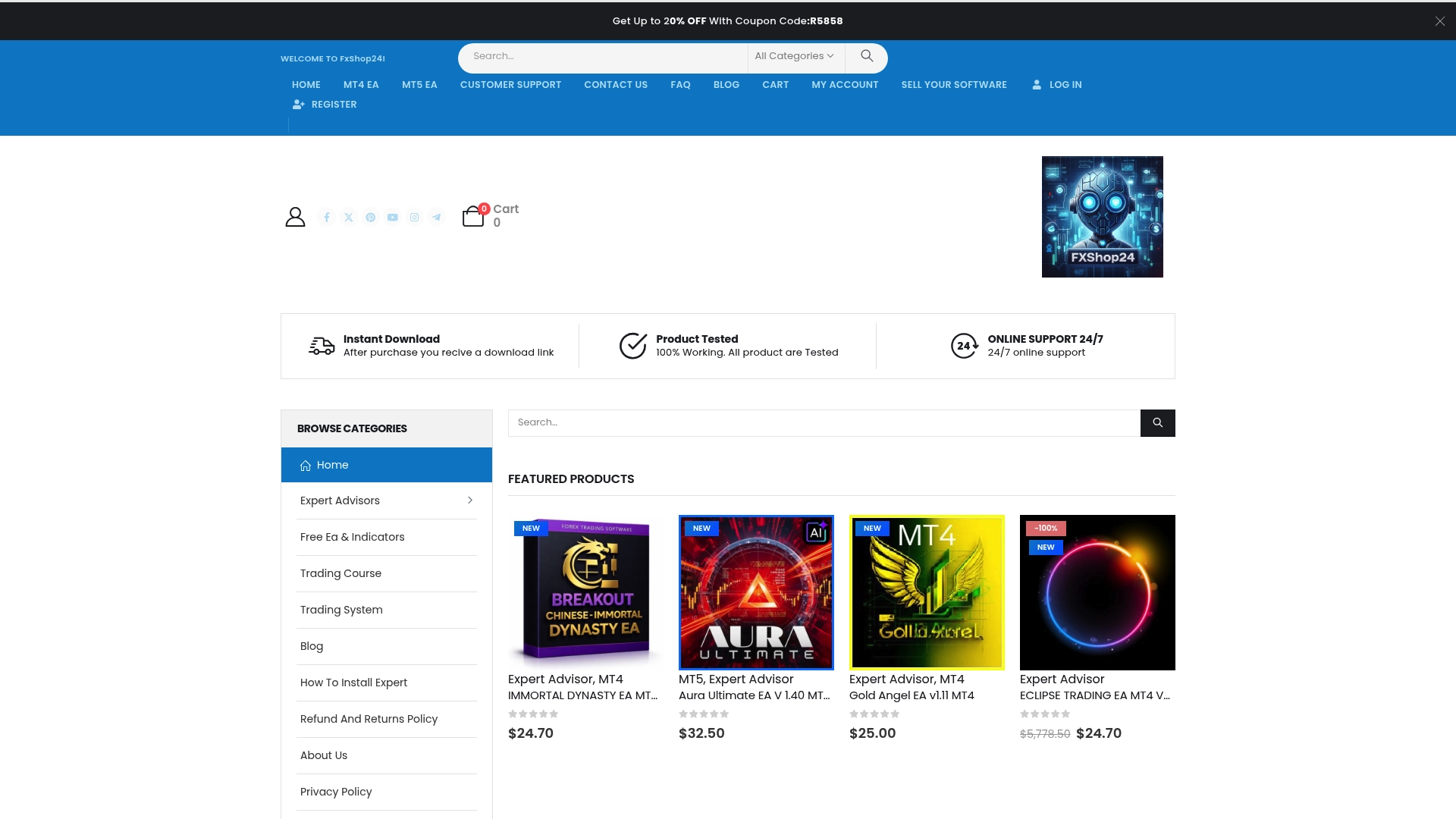
Discover how FxShop24 simplifies every step of your trading journey with expertly crafted EAs, AI-powered robots, and premium systems tailored for forex and gold trading on MetaTrader. With instant digital delivery, lifetime updates, and prop firm-ready options, our solutions minimize technical hurdles and maximize your trading potential. Visit FxShop24 official site to explore the latest automated trading software optimized for MetaTrader 4 and 5. Act now to transform your trading setup into a professional-grade, fully automated powerhouse.
Frequently Asked Questions
What are the minimum system requirements for installing MetaTrader?
To install MetaTrader, your computer must run Windows 2000 or later, have a processor of 2.0 GHz or faster, at least 512 MB of RAM, and a screen resolution of 1024 x 768 or higher. Verify your system meets these requirements before proceeding with the installation.
How can I set up a demo account for practicing with MetaTrader?
To set up a demo account, choose a broker that offers MetaTrader access and follow their account registration process. This typically requires providing personal information and selecting the demo option to practice trading without risking real money.
What steps should I follow to import and activate my trading software in MetaTrader?
To import and activate your trading software, navigate to the MetaTrader installation folder, then locate the
Recommended
- Workflow For Forex Automation: Step-by-Step Trading Setup
- How To Install Expert Advisors | Step-by-Step Guide For MT4
- Trading Robot Setup Guide: Master MetaTrader Automation
- How To Load Preset Files On MT4 And MT5: Quick Step-by-Step Tutorial | FxShop24 Marketplace
- Crypto Trading Strategy Optimization for Profitable Automation