



19
Jan
Trading Robot Setup Guide: Master MetaTrader Automation
Setting up a trading robot in MetaTrader can seem daunting when technical steps and platform settings stand between you and true automated trading. For retail forex traders from Canada to Australia, optimizing strategies with Expert Advisors is all about configuring the platform correctly and verifying every detail. This guide walks you through each part of the process, from preparing your MetaTrader platform for automated trading to monitoring real-time performance, so you can confidently harness automated solutions tailored to your trading goals.
Table of Contents
- Step 1: Prepare MetaTrader Platform For Robot Installation
- Step 2: Install And Activate Your Trading Robot Software
- Step 3: Configure EA Settings To Match Your Trading Goals
- Step 4: Test Trading Robot On A Demo Account
- Step 5: Monitor Performance And Troubleshoot Issues
Quick Summary
| Key Insight | Explanation |
|---|---|
| 1. Prepare MetaTrader Correctly | Ensure the MetaTrader platform is properly set up by accessing the data folder and enabling auto trading permissions. |
| 2. Install Robot Files Properly | Download the robot files and copy them to the correct directory before restarting the platform to recognize the new EA. |
| 3. Configure EA Settings Wisely | Adjust the Expert Advisor settings to align with your trading goals, such as risk management and trade entry/exit criteria. |
| 4. Test on a Demo Account First | Use a demo account to validate the robot’s performance, allowing you to see how it operates without risking real funds. |
| 5. Monitor and Troubleshoot Regularly | Continuously track the robot’s performance metrics and troubleshoot issues promptly to maintain its effectiveness and profitability. |
Step 1: Prepare MetaTrader Platform for Robot Installation
Prepping your MetaTrader platform for robot installation requires careful navigation through several technical steps. This process ensures your trading platform is configured correctly to support automated trading strategies.
Start by accessing your MetaTrader data folder, which serves as the primary location for installing trading robots. Depending on your operating system, this folder is typically located in different directories. Windows users can quickly find this by clicking File > Open Data Folder within the MT4 or MT5 platform. Once opened, you’ll want to navigate to the Experts folder where all trading robots are stored.
Before uploading your trading robot, confirm that auto trading permissions are enabled in your platform settings. This involves checking the auto trading button in the platform toolbar and ensuring your robot has permission to execute trades. Verify your internet connection is stable, as interrupted connections can prevent robot functionality. Double check that your broker settings allow Expert Advisor trading to prevent unexpected execution blocks.
Trader Tip: Always keep a backup copy of your original Expert Advisor files in a separate folder before installation to prevent accidental loss of your trading software.
Here is a summary of common challenges and how to address them during trading robot setup:
| Challenge | Cause | Solution |
|---|---|---|
| Robot not executing trades | Permissions disabled | Enable auto trading and check settings |
| Repeated disconnections | Unstable internet connection | Stabilize connection and restart platform |
| Robot missing in Navigator | Incorrect file location | Place EA in Experts folder and restart platform |
| Unexpected execution blocks | Broker restrictions | Contact broker and verify EA permissions |
Step 2: Install and Activate Your Trading Robot Software
Installing and activating a trading robot requires precision and careful attention to technical details. Your goal is to seamlessly integrate the Expert Advisor into your MetaTrader platform, ensuring it can execute trades effectively.
Begin by downloading your trading robot software as a compatible .ex5 or .mq5 file. Install Expert Advisor correctly by opening your MetaTrader platform’s data folder and navigating to the MQL5/Experts directory. Copy the robot file directly into this folder, then restart your platform to refresh the Expert Advisors list. After restarting, locate your newly added robot in the Navigator panel under the Expert Advisors section.

To activate the robot, drag and drop it onto a specific chart where you want it to trade. You will need to enable several critical trading permissions in the platform settings. Click on ‘Allow algorithmic trading’ and ‘Allow DLL imports’ in the Expert Advisors options. Confirm that your trading account settings permit automated trading and that you have sufficient margin to support the robot’s trading strategy. Verify the robot’s settings match your trading preferences before allowing live trades.
Trader Tip: Always test your Expert Advisor in a demo account first to validate its performance and settings without risking real capital.
Step 3: Configure EA Settings to Match Your Trading Goals
Configuring your Expert Advisor (EA) settings is a critical step that transforms an automated trading tool into a personalized trading strategy. Your goal is to align the robot’s operational parameters with your specific financial objectives and risk tolerance.
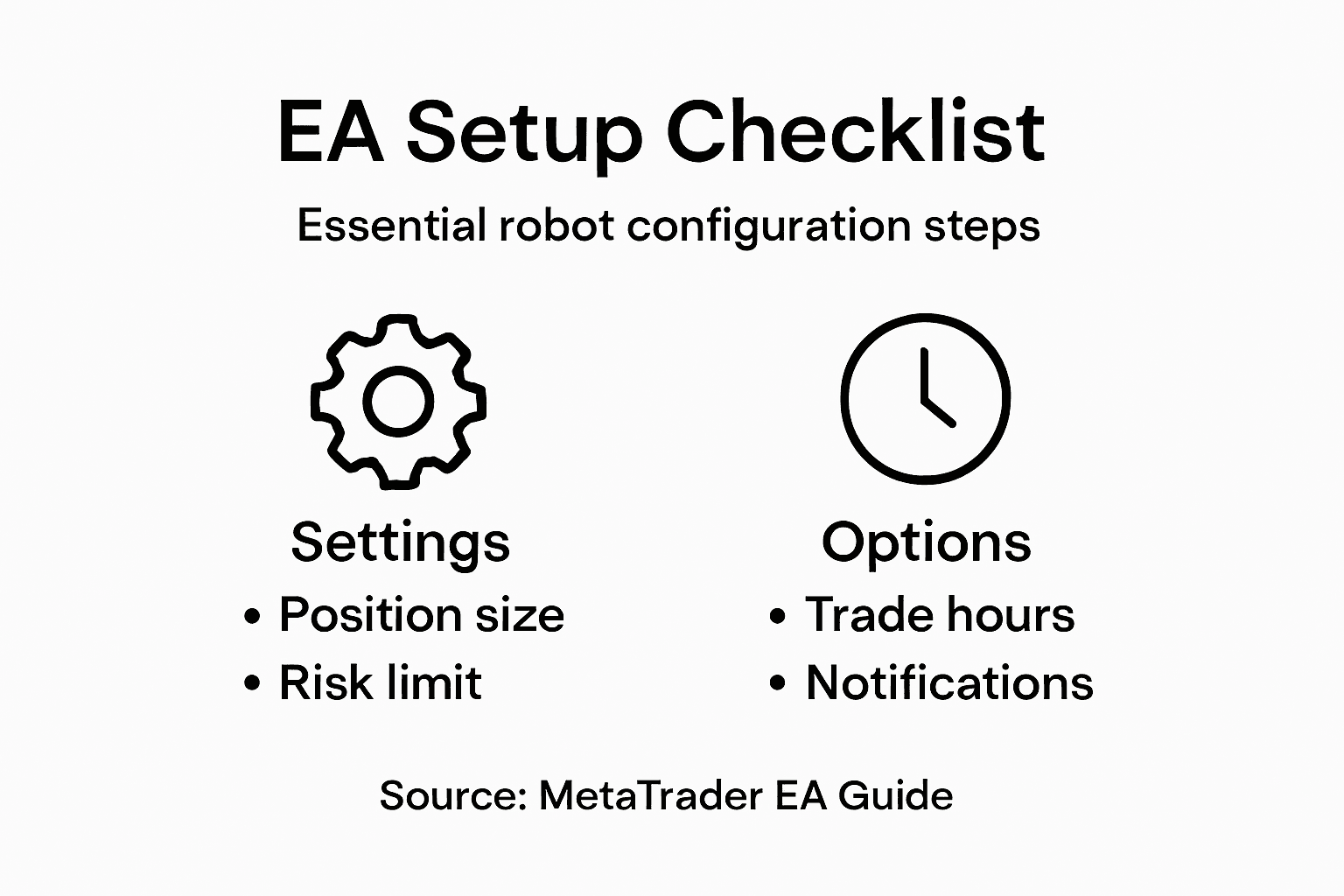
Start by carefully reviewing the Expert Advisor’s configuration menu, which typically includes settings for position sizing, risk management, entry and exit criteria, and trading time frames. From Demo To Real: Transitioning Safely With Expert Advisors provides insights into fine-tuning these critical parameters. Focus on adjusting lot sizes to match your account balance, setting maximum drawdown limits, and defining precise trade entry and exit conditions. Pay special attention to risk percentage per trade, ensuring the robot will not risk more than your predetermined comfort level.
Each trading robot comes with unique configuration options, so take time to understand each parameter’s specific impact. Examine stop loss and take profit settings, trading hours, currency pair restrictions, and any built-in money management rules. Test different configurations using the platform’s strategy tester to simulate how variations might perform under different market conditions. Remember that a well-configured EA balances aggressive performance with consistent risk management.
Trader Tip: Document each configuration change and its corresponding performance results to build a systematic approach to optimizing your Expert Advisor’s settings.
Step 4: Test Trading Robot on a Demo Account
Testing your trading robot on a demo account provides a critical opportunity to validate its performance without risking real money. This step allows you to observe how your Expert Advisor behaves in live market conditions while using simulated funds.
Strategy testing capabilities in MetaTrader platforms offer comprehensive tools for evaluating your robot’s potential. Begin by opening the Strategy Tester tool, which enables you to simulate trading performance using historical market data. Select the specific timeframe and symbol you want to test, then run multiple iterations to assess the robot’s consistency. Pay close attention to key performance metrics such as total net profit, maximum drawdown, profit factor, and return percentage. These indicators will help you understand how your robot might perform under different market scenarios.
During the demo testing phase, monitor the robot’s behavior carefully. Watch for unexpected trade entries, risk management issues, and overall strategy execution. Run extended tests across different market conditions to ensure robustness. Compare the robot’s performance against your initial configuration goals, and be prepared to make incremental adjustments based on the test results. Remember that successful automated trading requires continuous refinement and adaptation.
Trader Tip: Run your demo tests for at least 30 consecutive days to capture a comprehensive view of your trading robot’s performance across various market environments.
Step 5: Monitor Performance and Troubleshoot Issues
Monitoring your trading robot’s performance is a continuous process that requires systematic observation and proactive management. Understanding how your Expert Advisor performs under different market conditions will help you maintain its effectiveness and profitability.
Expert Advisor monitoring techniques involve tracking critical performance metrics in real time. Pay close attention to key indicators such as total net profit, win rate, average trade duration, maximum drawdown, and risk reward ratio. Set up customized alerts for significant events like substantial losses, unexpected trade patterns, or sudden changes in trading frequency. Review your trading reports daily, comparing actual performance against your initial configuration goals. Look for consistent patterns that might indicate underlying strategy weaknesses or potential optimization opportunities.
The following table highlights key performance metrics to monitor when evaluating your Expert Advisor:
| Metric | What It Reveals | Why It Matters |
|---|---|---|
| Net Profit | Overall earnings or losses | Measures trading success |
| Maximum Drawdown | Largest capital dip | Indicates risk exposure |
| Win Rate | Percentage of winning trades | Assesses strategy quality |
| Profit Factor | Gross profit to loss ratio | Shows long-term viability |
| Average Trade Duration | Typical holding time | Informs about strategy style |
Troubleshooting an automated trading system requires a systematic approach. If you notice performance degradation, start by analyzing recent trade logs and identifying potential root causes. Check for technical issues such as internet connectivity problems, broker API changes, or platform compatibility concerns. Compare your robot’s performance across different market conditions and timeframes to determine whether the issues are strategy related or caused by external factors. Consider incremental parameter adjustments, and be prepared to temporarily disable the robot if critical anomalies are detected.
Trader Tip: Create a detailed performance tracking spreadsheet that logs all key metrics, allowing you to visualize trends and make data driven optimization decisions.
Take Full Control of Your Automated Trading Journey with FxShop24
Setting up your MetaTrader trading robot can feel overwhelming when dealing with permissions, configurations, and performance monitoring. This guide highlights the challenges traders face like enabling auto trading, fine-tuning Expert Advisor settings, and testing strategies on demo accounts. If you want to move beyond trial and error, avoid unexpected blocks, and maximize your robot’s potential with tested, prop firm-ready solutions, FxShop24 is your ideal partner.
Discover a wide selection of premium Expert Advisors, AI-powered robots, and specialized trading systems designed for MetaTrader 4 and 5. Each product offers lifetime updates, unlimited licenses, and comes with detailed installation and performance support. Don’t let setup difficulties slow your trading success. Visit FxShop24 now and take advantage of reliable automation tools built to match your unique trading goals. Start optimizing your strategy today with products engineered to deliver consistent results and ease your MetaTrader automation experience.
Frequently Asked Questions
How do I prepare my MetaTrader platform for trading robot installation?
To prepare your MetaTrader platform, access the data folder by clicking File > Open Data Folder, then navigate to the Experts folder. Ensure that auto trading permissions are enabled and confirm your internet connection is stable before uploading your trading robot.
What steps should I follow to install and activate my trading robot?
To install your trading robot, download the compatible .ex5 or .mq5 file and place it in the MQL5/Experts directory. After restarting MetaTrader, drag and drop the robot onto the desired chart, then enable critical permissions such as ‘Allow algorithmic trading’ in the settings.
How can I configure my Expert Advisor settings to match my trading goals?
Start by reviewing the Expert Advisor’s configuration menu to adjust parameters like position size, risk management, and trading criteria. Focus on setting maximum drawdown limits and specific entry and exit conditions to ensure the robot aligns with your financial objectives.
What is the significance of testing my trading robot on a demo account?
Testing your robot on a demo account allows you to observe its performance without risking real money, validating its strategy in live market conditions. Run the tests for at least 30 consecutive days to capture its effectiveness across different scenarios.
What key metrics should I monitor to evaluate my trading robot’s performance?
Monitor metrics such as net profit, maximum drawdown, and win rate to assess your robot’s effectiveness. Set up alerts for significant changes, and analyze daily performance reports to identify trends and optimization opportunities.
Recommended
- What Is Forex Automation: Transforming Modern Trading
- How To Load Preset Files On MT4 And MT5: Quick Step-by-Step Tutorial | FxShop24 Marketplace
- Investor Password Vs Master Password On MT4/MT5: Key Differences Every Trader Should Know | FxShop24 Marketplace
- Stop Losing Money: 10 Forex Trading Bot Mistakes That Kill Accounts (And How To Fix Them) | FxShop24 Marketplace
Author