


3
Jan
MT5 Indicator Tutorial: Install and Optimize Custom Tools
Over 65 percent of retail forex traders now rely on automated tools to boost their trading efficiency. Whether you are an American enthusiast or a trader from another region, setting up MetaTrader 5 correctly is crucial for success. This guide explains how to organize, install, and optimize advanced indicators, making it easier to build smarter strategies and improve your decision making in volatile markets.
Table of Contents
- Step 1: Prepare MT5 Platform for Indicator Installation
- Step 2: Download and Add Custom Indicator Files
- Step 3: Attach and Configure Indicators on MT5 Charts
- Step 4: Verify Installation and Test Indicator Performance
- Step 5: Optimize Indicator Settings for Forex and Gold
Quick Summary
| Key Point | Explanation |
|---|---|
| 1. Prepare MT5 Before Installing | Download and install MetaTrader 5, ensuring all default options are selected for proper functionality. Organize indicators into a dedicated folder for easy access. |
| 2. Source Reliable Custom Indicators | Use trusted platforms like the MQL5 marketplace to find and download indicator files. Check compatibility and user reviews before adding them. |
| 3. Properly Configure Indicators | Drag and drop indicators onto charts and customize properties for optimal analysis. Experiment with settings to align with your trading strategy. |
| 4. Test Indicator Performance | Apply indicators across various timeframes and market conditions. Document performance and use MetaTrader 5’s tester to evaluate effectiveness. |
| 5. Optimize Settings for Trading | Fine-tune indicator parameters specific to Forex and Gold trading to enhance accuracy. Backtest settings to validate performance in differing market conditions. |
Step 1: Prepare MT5 Platform for Indicator Installation
Preparing your MetaTrader 5 platform for indicator installation is a straightforward process that ensures smooth integration of custom trading tools. This step involves setting up your platform correctly and creating the right environment for advanced technical analysis.
Begin by downloading the MetaTrader 5 platform from the official MetaQuotes download page. Choose the version matching your operating system - Windows, Linux, or macOS. During installation, ensure you select all default options to guarantee complete platform functionality. Launch the platform and log into your trading account or create a new demo account if you haven’t already.
Once inside the platform, navigate to the “Navigator” window, typically located on the left side of your screen. Here, you will find folders for indicators, expert advisors, and scripts. Before installing any custom indicators, create a dedicated folder within the “Indicators” directory to organize your tools systematically. This helps prevent clutter and makes future management easier.
Pro Tip: Always keep a backup of your original MetaTrader 5 indicators folder before adding custom tools, ensuring you can revert changes if needed.
Step 2: Download and Add Custom Indicator Files
Adding custom indicators to your MetaTrader 5 platform expands your technical analysis capabilities and helps you develop more sophisticated trading strategies. This step involves sourcing, downloading, and integrating new indicator files into your trading environment.
Your first task is to find reliable sources for custom indicators. The MQL5 marketplace offers a wide range of professionally developed indicators compatible with MetaTrader 5. Download compiled indicator files with the .ex5 extension or source code files with .mq5 extension. Before downloading, verify the indicator’s compatibility with your trading platform version and check user reviews and performance ratings.
Here’s a summary of common indicator file types and their purposes for MT5:
| File Type | Usage Context | Typical Content |
|---|---|---|
| .ex5 | Direct platform installation | Compiled, ready-to-use indicator |
| .mq5 | Source code editing | Programmable, customizable indicator |
| .dll | External libraries | Enhances indicator functionality |
To install the downloaded indicators, open MetaTrader 5 and click ‘File’ then ‘Open Data Folder’. Navigate to the ‘MQL5/Indicators’ directory and copy your downloaded .ex5 or .mq5 files directly into this folder. Close and restart the MetaTrader 5 platform to ensure the new indicators load properly. After reopening, right click the ‘Indicators’ section in the Navigator panel and select ‘Refresh’ to make your new tools immediately available for chart application.
Pro Tip: Always scan downloaded indicator files with an updated antivirus program before adding them to your MetaTrader 5 platform to prevent potential security risks.
Step 3: Attach and Configure Indicators on MT5 Charts
Attaching and configuring indicators in MetaTrader 5 transforms your trading charts into powerful analytical tools that can reveal critical market insights. Understanding how to properly integrate and customize these technical indicators is crucial for developing sophisticated trading strategies.
To begin, open the Navigator window and locate your desired indicator. Drag and drop technical indicators onto your chart to initiate the configuration process. Once added, right click the indicator on your chart and select ‘Properties’ to access advanced customization options. Here you can adjust critical parameters like calculation period, color scheme, line thickness, and applied price type. MT5 allows multiple indicators on a single chart, enabling complex multi-indicator analysis strategies that can provide deeper market insights.

Experiment with different indicator settings to match your specific trading approach. Some traders prefer shorter periods for more responsive signals, while others choose longer periods for smoother trend identification. Pay close attention to how parameter changes affect the indicator’s visual representation and signal generation. Remember that no single indicator configuration works universally across all market conditions.
Pro Tip: Save multiple indicator template configurations to quickly switch between different analytical setups without manually readjusting settings each time.
Step 4: Verify Installation and Test Indicator Performance
Verifying the installation and performance of your new MetaTrader 5 indicators is a critical step in ensuring they provide accurate and reliable trading signals. This process helps you confirm that your custom tools are functioning correctly and delivering meaningful market insights.
Start by applying the newly installed indicator to multiple timeframes and different financial instruments. Compare the indicator’s performance across various market conditions including trending, ranging, and volatile scenarios. Look for consistent signal generation and pay attention to any unusual lag or calculation discrepancies. Most indicators include built-in input parameters like period length, standard deviation, or smoothing factors that can be fine tuned to optimize performance.
Create a systematic testing approach by documenting your observations. Use MetaTrader 5’s strategy tester to backtest the indicator’s historical performance, which allows you to simulate trading results and evaluate its predictive capabilities. Analyze metrics like signal accuracy, false positive rates, and potential profit potential. Remember that no single indicator works perfectly across all market environments, so understanding its strengths and limitations is key to effective trading strategy development.
Pro Tip: Maintain a trading journal documenting your indicator’s performance, recording both successful and unsuccessful signals to continuously refine your analytical approach.
Step 5: Optimize Indicator Settings for Forex and Gold
Optimizing indicator settings is a sophisticated process that transforms generic technical tools into powerful analytical instruments tailored specifically for Forex and Gold trading strategies. Your goal is to fine tune parameters that enhance signal accuracy and reduce false alerts across different market conditions.
Indicator parameter optimization requires a strategic approach that considers market volatility and your individual trading style. For Forex pairs and Gold instruments, focus on adjusting key settings like period length, smoothing factors, and signal sensitivity. Shorter periods generate more responsive signals but increase noise, while longer periods produce smoother trend indications with increased lag. Experiment with different configurations to find the optimal balance that matches your risk tolerance and trading timeframe.
Develop a systematic optimization process by using MetaTrader 5’s strategy tester to validate your indicator settings. Run comprehensive backtests across multiple market scenarios, comparing performance metrics such as win rate, drawdown, and profit factor. Pay special attention to how your customized settings perform during different market conditions like trending, ranging, and high volatility periods. Gold and Forex markets often require distinct parameter sets, so avoid assuming a one size fits all approach.
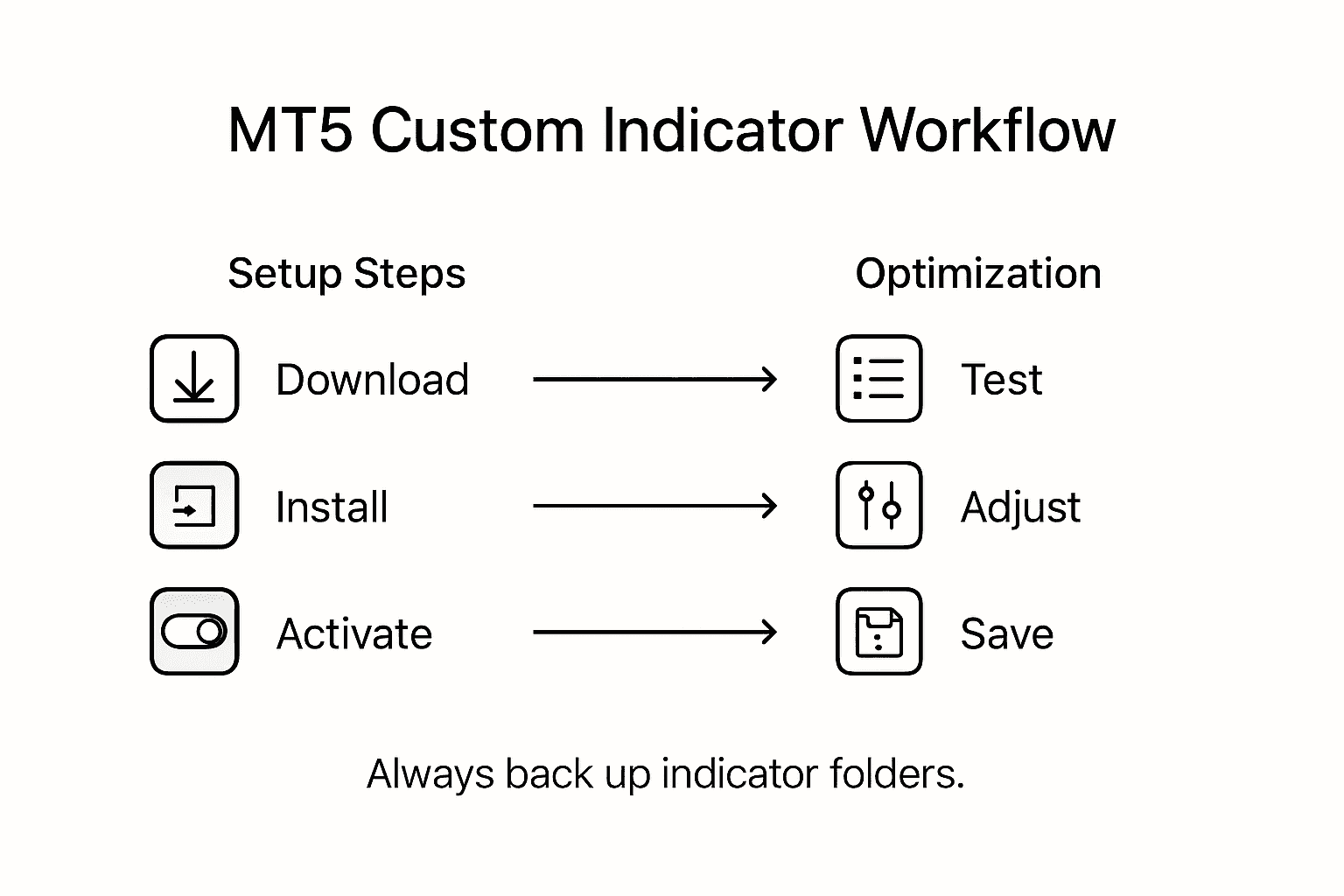
This table compares indicator optimization approaches for Forex versus Gold trading:
| Optimization Factor | Forex Pairs | Gold Instruments |
|---|---|---|
| Volatility Adjustments | Needed for frequent swings | Required for sharp movements |
| Period Length Choice | Favors shorter to medium | Often medium to longer periods |
| Signal Sensitivity | Moderately high | Lower to avoid noise |
| Backtesting Results Focus | Win rate and drawdown | Profit factor and trend reliability |
Pro Tip: Create and save multiple indicator profile configurations, allowing quick switching between conservative, aggressive, and balanced trading setups.
Unlock the Full Potential of Your MT5 Indicators with Automated Tools
Installing and optimizing custom indicators on MetaTrader 5 can be challenging when trying to perfect parameters and ensure consistent performance across volatile Forex and Gold markets. Common trader pain points include finding reliable indicators, configuring settings for high signal accuracy, and continuously adapting strategies to different market conditions. The detailed steps in this article highlight the importance of precise indicator setup, performance testing, and parameter optimization to gain a real trading edge.
At FxShop24, we understand these challenges and offer a comprehensive selection of automated trading solutions designed to seamlessly integrate with your MT5 platform. From expert advisors (EAs) that execute trades based on optimized indicators to AI-powered robots fine-tuned for Forex and Gold, our products help eliminate guesswork and improve your trading efficiency. Whether you want to enhance your indicator configurations or automate your strategy for consistent results, our offerings provide instant digital delivery and unlimited licenses to empower your journey.
Take control of your MetaTrader 5 trading experience today by exploring our premium automated tools at FxShop24. Don’t let complex optimization slow you down. Invest now in tested and prop firm-ready systems that bring high performance directly to your charts, so you can focus on making smarter trading decisions.
Frequently Asked Questions
How do I install custom indicators on the MT5 platform?
To install custom indicators on the MT5 platform, first, download the desired indicator files with .ex5 or .mq5 extensions. Open MT5, go to ‘File’ and then ‘Open Data Folder’, navigate to the ‘MQL5/Indicators’ directory, and copy the downloaded files there. Finally, restart the platform and refresh the indicators in the Navigator panel to access them.
What types of files can I use for MT5 indicators, and how do they differ?
You can use .ex5 files for direct installation as they are compiled indicators ready to use, while .mq5 files are source code files that allow for customization. Determine your needs—if you want to use the indicator as-is, go with .ex5; if you want to tweak its code, choose .mq5.
How can I optimize my indicators for Forex and Gold trading in MT5?
To optimize indicators for Forex and Gold trading, adjust key parameters like period length, signal sensitivity, and smoothing factors according to market conditions. For example, use shorter periods for Forex pairs to capture quick swings, while considering longer periods for Gold to avoid noise. Conduct backtests using the strategy tester in MT5 to find the best configurations.
What should I do if my custom indicators are not functioning correctly in MT5?
If your custom indicators are not performing as expected, first check that they have been correctly installed in the ‘MQL5/Indicators’ folder. Next, ensure that you refresh the Navigator panel and test the indicators on multiple timeframes to confirm their functionality. Consider also verifying any parameter settings that might need adjustment.
How can I effectively test my indicators’ performance on MT5?
To test your indicators’ performance, apply them to different charts and timeframes to assess their signal accuracy under various market conditions. Document your findings and use the strategy tester in MT5 for historical backtesting to analyze performance metrics like win rate and drawdown, which can provide insights into their effectiveness.
What steps can I take to backup my MT5 indicators before adding custom tools?
To create a backup of your MT5 indicators, navigate to the original ‘MQL5/Indicators’ folder within the MT5 data directory. Copy the entire folder to a safe location on your computer. This allows you to restore the original settings if needed after adding custom tools.
Recommended
- How To Install Expert Advisors | Step-by-Step Guide For MT4
- Best Currency Strength Indicator MT4 V4.2 | FxShop24 Marketplace
- PipFinite Trend PRO Indicator MT4 Unlimited | FxShop24 Marketplace
- TRADE BOOSTER Digital Indicator Version 4.0 | FxShop24 Marketplace
- Boost Performance With Website Speed Optimization Builders - ResponsiveWebsiteDesign
Author