

24
Oct
How to Install and Optimize Your First MT4 Expert Advisor in 5 Minutes (Beginner's Guide)
Ever stared at MetaTrader 4 wondering how those successful traders manage to sleep peacefully while their accounts grow? The secret isn't superhuman discipline or endless chart watching, it's automation through Expert Advisors (EAs). If you've downloaded your first mt4 ea and feel overwhelmed by installation, you're not alone. Most traders abandon their automation journey right here, missing out on the consistent execution that separates profitable traders from the struggling masses.
This guide transforms that intimidation into confidence. In just 5 minutes, you'll have your first expert advisor mt4 running, optimized, and ready to execute your trading strategy while you focus on higher-level decisions.
The 5-Minute Installation Process
Step 1: Secure Your EA File (30 seconds)
Before diving into installation, ensure you're working with a legitimate forex software file. Your EA will arrive as either an .ex4 file (pre-compiled) or .mq4 file (source code). If you've downloaded a free forex robot for mt4 download, verify it comes from a reputable source, the MetaTrader Market, established forums like Forex Factory, or trusted developers.
Avoid the temptation to grab random mt4 forex robot free download files from questionable websites. These often contain malicious code or perform poorly, wasting your time and potentially compromising your trading account.
Step 2: Access Your MT4 Data Directory (1 minute)
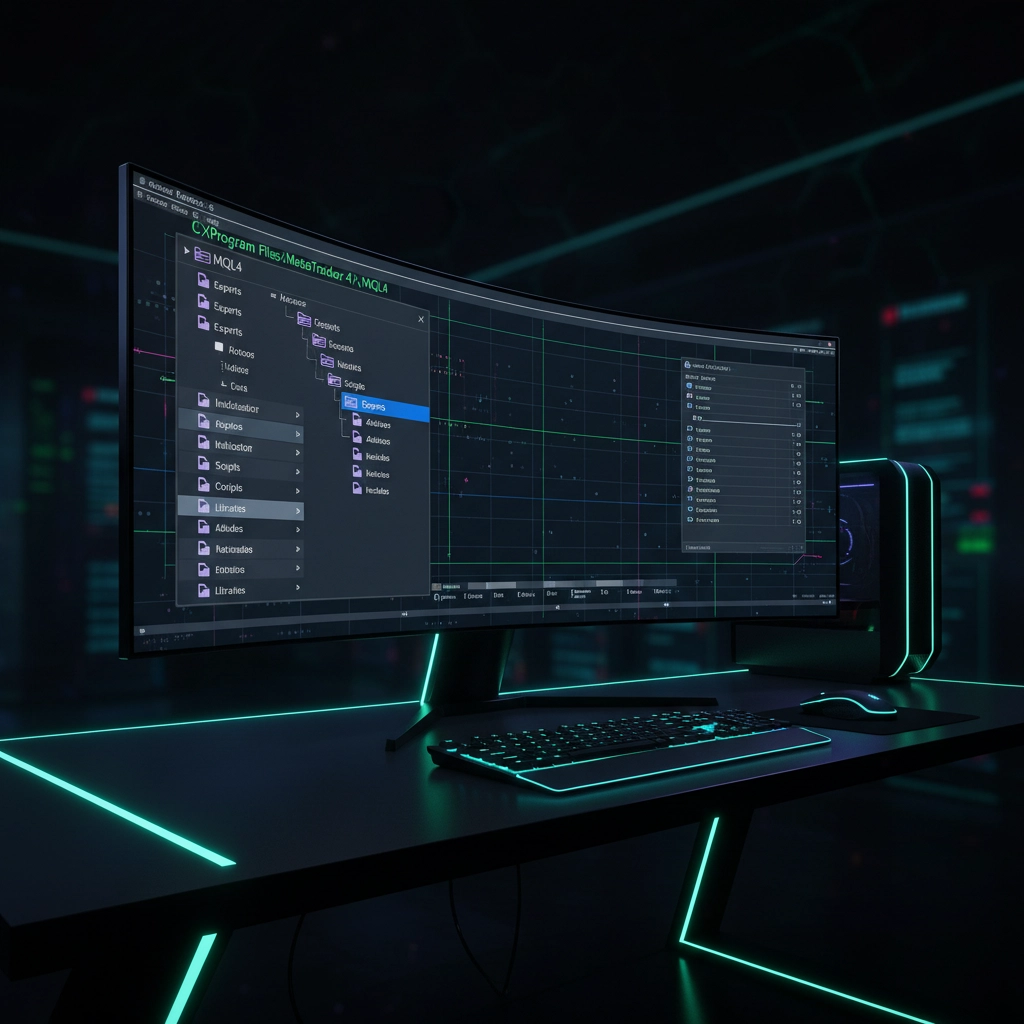
Open your MetaTrader 4 platform and navigate to File → Open Data Folder from the top menu. This opens your platform's core directory where all customizations live. You'll see several folders, locate MQL4 and double-click to enter.
Inside MQL4, you'll find the Experts folder. This is your destination. Think of it as the garage where your robot trading metatrader 4 vehicles park when not actively working.
Step 3: Install the EA (30 seconds)
Simply copy your .ex4 or .mq4 file into the Experts folder. That's it. No complex installation wizards or registry modifications. MetaTrader's architecture makes EA installation refreshingly straightforward compared to other trading platforms.
Close the file explorer and return to your MT4 platform. Right-click on Expert Advisors in the Navigator panel (left side of your screen) and select Refresh. Your new EA should appear in the list immediately.
Step 4: Attach to Your Trading Chart (1 minute)
Open the chart for your desired currency pair by double-clicking it in the Market Watch window. Now comes the magic moment, drag your EA from the Navigator panel directly onto the chart. A settings window pops up instantly, giving you control over how this trading strategy automation behaves.
Step 5: Configure Basic Settings (2 minutes)
The settings window contains the EA's DNA, parameters that determine risk levels, lot sizes, and operational hours. Focus on these critical settings first:
Lot Size: Start conservative. If you're trading a $1,000 account, consider 0.01 lots maximum until you've verified the EA's behavior.
Risk Management: Look for risk percentage settings. Never exceed 2% account risk per trade, regardless of how confident you feel about the EA's performance.
Trading Hours: Some EAs work better during specific market sessions. London and New York overlap (8 AM - 12 PM EST) offers the highest liquidity for most currency pairs.
Check both Allow live trading and Allow DLL imports boxes. These permissions enable your EA to execute real trades and access necessary trading libraries.
Click OK to finalize the setup.
Critical Configuration for Optimal Performance
Enable Auto-Trading
Locate the Auto Trading button in MetaTrader's toolbar: it looks like a play button with "AUTO" text. Click it until it turns bright green. This global switch controls whether any EAs on your platform can execute trades. Without this enabled, your EA becomes an expensive chart decoration.
You'll know everything's working when a small smiley face icon appears in your chart's top-right corner. This visual confirmation means your automated money management system is active and monitoring the market.

Symbol Suffix Considerations
Many brokers add suffixes to their currency pairs (like EURUSD.m or GBPUSD_sb). If your EA was designed for standard symbols but your broker uses suffixes, the EA might not recognize the trading instruments. Check your Market Watch window for your broker's exact symbol names and adjust the EA's symbol settings accordingly.
Optimize Spread and Slippage Settings
Most EAs include spread filters to avoid trading during high-spread conditions. Set your maximum spread to 3-4 pips for major pairs. This prevents the EA from entering trades when market conditions would immediately put you at a significant disadvantage.
Slippage settings control how much price deviation the EA accepts when executing trades. Set this to 2-3 pips for major pairs during normal market hours.
Common Installation Errors and Quick Fixes
"Expert Advisor is Not Working" Error
This usually means DLL imports are disabled. Return to your EA settings by double-clicking the EA name on your chart, navigate to the Common tab, and ensure Allow DLL imports is checked.
No Trading Activity Despite Perfect Setup
Verify that:
- Auto-trading is enabled (green button)
- Your account has sufficient margin
- The EA's trading hours match current market time
- Your broker allows automated trading (some demo accounts restrict EA functionality)
EA Disappeared After Platform Restart
This happens when the EA file wasn't properly placed in the Experts folder or when MT4 updates reset custom settings. Re-drag the EA onto your chart and reconfigure the settings. Consider saving your EA configurations as template files for quick restoration.
Pre-Live Trading Checklist
Demo Account Testing
Never launch an EA directly on live funds. Spend at least one week observing its behavior on a demo account with identical broker conditions. This reveals how the EA handles different market scenarios without risking capital.
Strategy Tester Validation
Right-click your EA in the Navigator and select Strategy Tester (or press F6). Run backtests on historical data covering various market conditions: trending markets, ranging markets, and high-volatility periods. Look for consistent performance rather than spectacular short-term gains.
Money Management Verification
Verify that your EA respects position sizing rules and doesn't compound risk inappropriately. Some EAs increase lot sizes after losses, creating dangerous martingale scenarios. Your money management approach should prioritize capital preservation over aggressive profit targets.

Advanced Optimization Tips
Multiple Timeframe Coordination
If your EA trades based on specific timeframe signals, ensure your chart timeframe matches the EA's intended operational timeframe. A scalping EA designed for 1-minute charts will behave differently on 15-minute charts.
VPS Considerations
For 24/7 operation, consider running your EA on a Virtual Private Server (VPS). This ensures consistent execution even when your computer is off. Many brokers offer free VPS services for active traders.
Regular Performance Monitoring
Set weekly review sessions to analyze your EA's performance. Track key metrics like win rate, average trade duration, and maximum drawdown. This data helps you identify when market conditions no longer suit your chosen trading strategy.
Your Next Steps
Installation is just the beginning of your automation journey. Your EA is now active, but success depends on ongoing optimization and realistic expectations. Start with conservative settings, monitor performance closely, and gradually increase position sizes only after confirming consistent profitability.
Remember that even the best expert advisor mt4 can't overcome poor risk management or unrealistic expectations. Use this automation as a tool to execute your strategy consistently, not as a magic solution to trading challenges.
The 5 minutes you've invested in proper installation sets the foundation for potentially months of automated trading success. Your EA is now working while you sleep, scan for other opportunities, or simply enjoy life outside the charts.
Ready to explore more advanced EA strategies? Check out our guide on scalping EA secrets to discover how professional traders maximize their automated trading results.