



19
May
How to Optimize MT4 Strategies for Better Profits
TL;DR:
- Optimizing MT4 strategies requires high-quality historical data, proper platform setup, and rigorous validation to prevent overfitting.
- Ensuring your data accuracy, limiting parameters, and testing at increased spreads are essential for developing robust, live-ready trading systems.
- Consistent validation, environment optimization, and disciplined process management are key to achieving sustainable profits with MT4 EA strategies.
If your MT4 strategies look great on paper but fall apart in live trading, you are not alone. Knowing how to optimize MT4 strategies the right way is what separates traders who grind through inconsistency from those who build systems that actually hold up. This guide walks you through everything from data preparation and Strategy Tester configuration to platform performance tuning and rigorous validation — so you stop guessing and start trading with confidence.
Table of Contents
- Key takeaways
- How to optimize MT4 strategies: prerequisites first
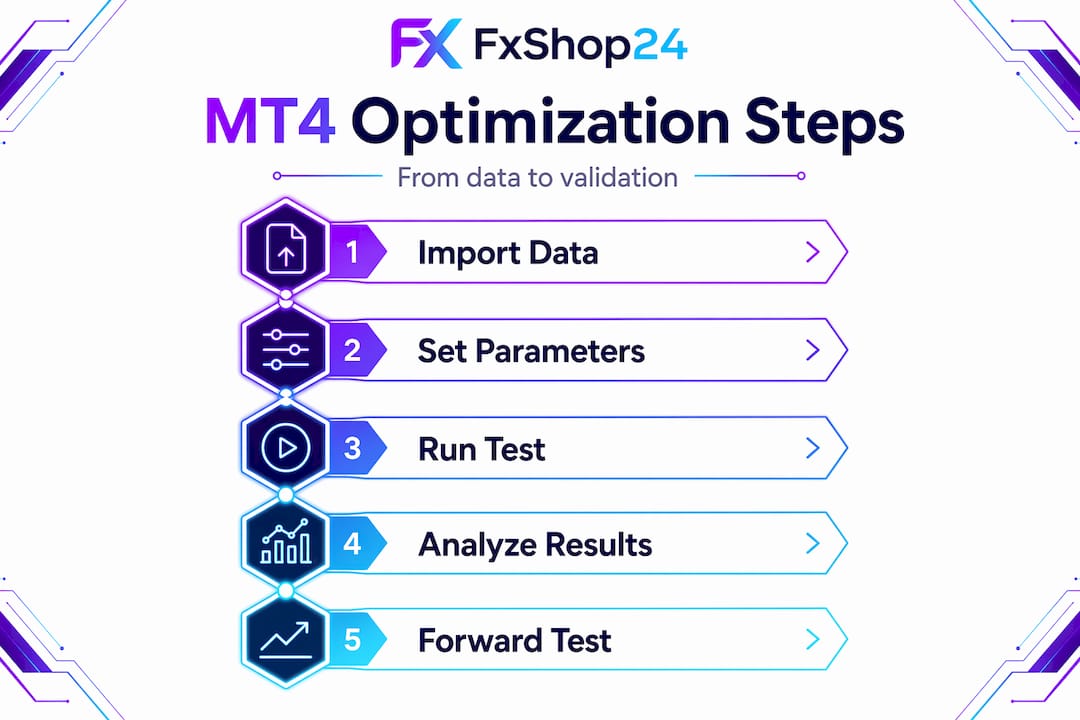
- Running the optimization process step by step
- Improving MT4 platform performance
- Validating your optimized strategy before going live
- Common optimization mistakes to avoid
- My honest take on MT4 optimization
- Take your MT4 trading further with Fxshop24
- FAQ
Key takeaways
| Point | Details |
|---|---|
| Data quality comes first | High-quality M1 history is required before any optimization run produces meaningful results. |
| Overfitting kills live performance | Always validate optimized parameters on out-of-sample data before going live. |
| Platform efficiency matters | Decluttering MT4 and setting CPU affinity can cut lag and prevent missed trades. |
| Spread stress-testing is non-negotiable | Test strategies at 3 to 4 times the normal spread to confirm real-world viability. |
| Forward testing confirms robustness | Running a demo forward test for at least 4 weeks reveals how strategies behave in real market conditions. |
How to optimize MT4 strategies: prerequisites first
Most traders skip straight to the Strategy Tester and wonder why their results are garbage. The problem almost always starts before the first optimization run. Your output is only as good as the inputs you feed the system.
Get your historical data right
Modeling quality below 90% in MT4 backtesting usually means you have incomplete M1 data. When MT4 cannot find tick data for a candle, it interpolates. Interpolated data can produce misleading signals that look clean in a backtest but have no basis in real price movement. Fix this by downloading complete M1 history from your broker or importing third-party tick data through tools like Tickstory or Dukascopy.
Once your data is loaded, check the modeling percentage in the Strategy Tester report. Anything below 90% is a warning sign. At 99%, you are working with genuine tick data. That is where you want to be for any serious optimization.
Strategy Tester setup basics
Before you run a single pass, configure these settings correctly:
- Symbol: Match the exact pair and account type you trade. Spreads differ between brokers and account types.
- Timeframe: Use the primary chart timeframe your EA is designed for.
- Spread: Never use the default spread. Pull the current average spread from your broker and enter it manually.
- Modeling: Use “Every Tick” for final validation runs. Use “Control Points” for faster preliminary optimization passes.
- Date range: Use at least 3 to 5 years of data, split into an in-sample block for optimization and an out-of-sample block for validation.
| Setting | Recommended value |
|---|---|
| Modeling mode | Every Tick (final runs) |
| Spread | Broker average, not default |
| Modeling quality | 90% minimum |
| Date range | 3 to 5 years minimum |
| Out-of-sample period | Last 20 to 30% of data |
Hardware and environment
MT4 is a 32-bit application that does not natively use multiple CPU cores. On a multi-core VPS, this means resources go to waste and the platform can become unstable. Binding each MT4 instance to a specific core through Windows Task Manager resolves this. If you run multiple EAs, assign each terminal to its own core rather than letting Windows arbitrarily distribute the load.

Running the optimization process step by step
Once your data is clean and your environment is configured, you are ready to run. Here is the exact sequence that produces reliable results.
- Open the Strategy Tester from the View menu or press Ctrl+R.
- Select your Expert Advisor from the dropdown. Load the correct version, not a demo-restricted build.
- Set the symbol, timeframe, and spread as outlined in the prerequisites.
- Check the “Optimization” checkbox and select the parameters you want to test.
- Define min, max, and step values for each parameter. Keep ranges tight and logical. Testing an RSI period from 2 to 500 produces noise, not insight.
- Set your date range. Use a specific in-sample window and reserve the last 20 to 30% of your data for out-of-sample validation.
- Choose “Control Points” mode for a fast first pass to identify promising parameter clusters.
- Click Start and let the tester run. Sort results by profit factor rather than total profit when the run completes.
- Take the top 10 to 20 result sets and re-run them in “Every Tick” mode to confirm they hold up under higher-fidelity simulation.
- Record every promising configuration in a backtest journal before moving to validation.
Pro Tip: Disable visual mode during optimization runs. Visual mode slows the tester significantly and is only useful for observing individual trade execution. Reserve it for reviewing a single strategy pass, not bulk parameter sweeps.
One thing most guides miss: MT4’s visual mode lacks rewind and speed control, which limits how much you can actually learn from watching it. For manual strategy practice, a dedicated simulator gives you far more control. Visual mode in the Strategy Tester is best used to confirm that your EA opens and closes trades as expected, nothing more.
Avoid the trap of selecting only the highest-profit result from an optimization run. Optimization is iterative, and the single best result is often an outlier shaped by noise in historical data. Look for parameter clusters where multiple nearby values produce similar, stable results. That is the sign of a genuinely robust setting, not a lucky coincidence.
Improving MT4 platform performance
You can have a perfectly optimized EA and still lose money if your MT4 platform is running slowly, crashing, or missing order executions due to resource strain. Platform-level performance is a critical part of any guide to MT4 optimization.
Reducing visible symbols in the Market Watch window to only the pairs you actively trade can cut CPU usage by 20 to 40%. This is a simple change that most traders never make. While they are busy tuning RSI periods to three decimal places, their platform is quietly burning CPU cycles rendering data for 300 symbols they never touch.
Here is a practical checklist to reduce platform overhead:
- Remove all symbols from Market Watch except the ones your EAs trade.
- Close chart windows you are not actively monitoring.
- Set “Max bars in history” to 500,000 and “Max bars in chart” to 10,000 in Tools > Options > Charts. Going higher rarely adds value and consumes unnecessary memory.
- Disable sounds, news feed, and the DDE server in the platform settings.
- Turn off expert advisor email notifications unless you are actively using them.
- Set CPU affinity for each terminal.exe process to a single dedicated core via Task Manager on your VPS.
- Schedule a weekly restart of both MT4 and your VPS to clear memory leaks and refresh connections.
Pro Tip: Create a dedicated MT4 profile for live trading that contains only the charts and EAs you need. Load this profile every time you start the platform. It prevents chart clutter from accumulating and keeps resource usage predictable.
Experts also recommend building a master chart template that you apply consistently across all trading pairs. This reduces decision fatigue and keeps your workspace organized in a way that does not fight your cognitive load during active trading sessions.
Validating your optimized strategy before going live
Optimization is only half the work. Before you risk a single dollar of real capital, your strategy needs to pass a rigorous validation process. This is where most traders cut corners and pay for it in live drawdown.
In-sample vs. out-of-sample testing
The concept is simple but frequently ignored. Your in-sample data is what you optimized on. Your out-of-sample data is a separate period the optimizer never saw. If your strategy performs well on in-sample data but collapses on the held-out period, you have overfitted your parameters to historical noise, not to market logic.
A strategy that beats in-sample data by 200% but loses money out-of-sample is not a strategy. It is a curve-fitted artifact. The fix is to reserve at least 20% of your data before you start optimizing, then test only on that reserved block after you have selected your parameters.
Stress-testing and forward testing
Experts advise testing at 3 to 4 times the current spread before calling a strategy viable. Markets widen spreads during news events, low liquidity sessions, and volatility spikes. If your strategy only works with a 1-pip spread but your broker routinely spikes to 4 pips during Asian session opens, the live account performance will look nothing like your backtest.
After stress-testing, move to a demo forward test for a minimum of 4 weeks. Backtest and forward test results diverge by 30 to 50% on average. That gap represents real-world factors no historical simulation can fully capture.
When reading your backtest report, focus on these metrics:
- Profit factor above 1.5 as a minimum threshold for live consideration.
- Maximum drawdown as a percentage of the account. Anything above 25% deserves caution.
- Equity curve shape. A smooth upward slope is a better sign than a jagged curve with a single large winning streak.
- Number of trades. A strategy with 12 trades over 5 years is not statistically meaningful.
“A strategy that cannot survive wider spreads and a live demo run has not been optimized. It has been decorated.”
Keep a detailed backtest journal that records every parameter set you test, the date ranges used, the modeling mode, the spread setting, and the key metrics from each run. This prevents you from accidentally re-testing configurations you already ruled out and builds a clear record of your optimization history.
For a deeper walk through the verification process, the MT4 EA verification guide at Fxshop24 covers the most common pitfalls in detail.
Common optimization mistakes to avoid
Even experienced traders make these errors. Knowing them ahead of time saves weeks of frustration.
- Using the default spread. The default is almost always unrealistically low. Always input your broker’s actual average spread.
- Ignoring commissions and slippage. Adding realistic commissions and stress-testing with wider spreads is the difference between a viable strategy and a theoretical one.
- Over-optimizing too many parameters simultaneously. Each additional parameter you optimize multiplies the search space and the overfitting risk.
- Heavy chart clutter. Running ten open chart windows with multiple indicators while an optimization is processing guarantees lag and potential crashes.
- Assuming perfection. No optimized strategy wins 100% of trades. A 55 to 60% win rate with a 1.5 profit factor is a strong, tradeable system. Chasing anything higher often produces fragile curve-fitted results.
Pro Tip: Review and re-optimize your strategies every 3 to 6 months. Markets shift regime, volatility patterns change, and parameters that worked in 2024 may not hold in 2026. Treat optimization as a continuous process, not a one-time task.
The MT4 EA optimization guide at Fxshop24 covers additional edge cases and practical examples for traders who want to go deeper on avoiding these pitfalls.
My honest take on MT4 optimization
I have worked with enough traders and EAs to know that the biggest obstacle to effective optimization is not technical knowledge. It is the expectation that optimization produces a perfect strategy.
What I have seen repeatedly: traders run an optimization, cherry-pick the single best result, skip out-of-sample testing, and go live. Then they are shocked when the strategy draws down. The optimization process did not fail them. Their process failed them.
My experience tells me that simpler strategies with fewer parameters almost always outperform complex, heavily tuned systems in live trading. The more parameters you optimize, the more ways you have to overfit. A 3-parameter moving average crossover with realistic spread assumptions and 4 years of clean data will often outlast a 12-parameter neural network EA in a live account.
What I have also learned is that platform performance is underrated. I have seen perfectly valid EAs lose money not because the logic was wrong, but because the MT4 instance was running on a cluttered VPS that executed orders 200ms late during volatile sessions. Before you blame your EA, check your environment.
The discipline of keeping a detailed backtest journal, testing out-of-sample every single time, and doing quarterly reviews is not glamorous. But it is what separates traders who maintain profitable systems from those who constantly chase the next optimization run hoping for a different result. Build the process, trust the process, and let the data tell you what works.
— FxShop24
Take your MT4 trading further with Fxshop24
If this guide gave you a clearer picture of what proper MT4 optimization looks like, Fxshop24 has the tools and resources to help you put it into practice. The Fxshop24 marketplace offers professionally built EAs, AI-powered trading robots, and step-by-step forex automation workflows designed for both retail traders and prop firm candidates. Every product comes with installation guidance and realistic performance documentation so you are not flying blind.
For traders ready to go beyond manual strategy tuning, the automated trading systems guide at Fxshop24 walks through the full spectrum of automation options available for MT4 and MT5. You will find prop-firm-ready EAs with lifetime updates, unlimited license access, and backtested results built on the exact standards this guide covers.
Explore the Fxshop24 marketplace and find the trading system that fits how you actually trade.
FAQ
What is the best modeling mode for MT4 optimization?
Use “Every Tick” mode for final validation runs since it produces the most accurate simulation. Use “Control Points” for faster preliminary sweeps when exploring large parameter ranges.
How do I prevent overfitting during MT4 strategy optimization?
Reserve 20 to 30% of your historical data as an out-of-sample block before you optimize. Only test final parameter sets against this reserved period to confirm the results are real and not curve-fitted.
How many parameters should I optimize at once?
Optimize 2 to 4 parameters per run as a general rule. Each additional parameter increases the search space exponentially and raises the risk of finding a result that only works on historical data.
Why does my MT4 run slowly during optimization?
MT4 is a 32-bit application and does not use multiple CPU cores natively. Declutter your Market Watch, close unused charts, and assign CPU affinity to a single core per MT4 instance to reduce lag significantly.
How long should I forward test before trading live?
Run a demo forward test for at least 4 weeks after optimization. Backtest and live results typically diverge by 30 to 50%, so forward testing reveals how the strategy behaves under real spread and slippage conditions.