18
Dec
How to Install Expert Advisor with DLL Files
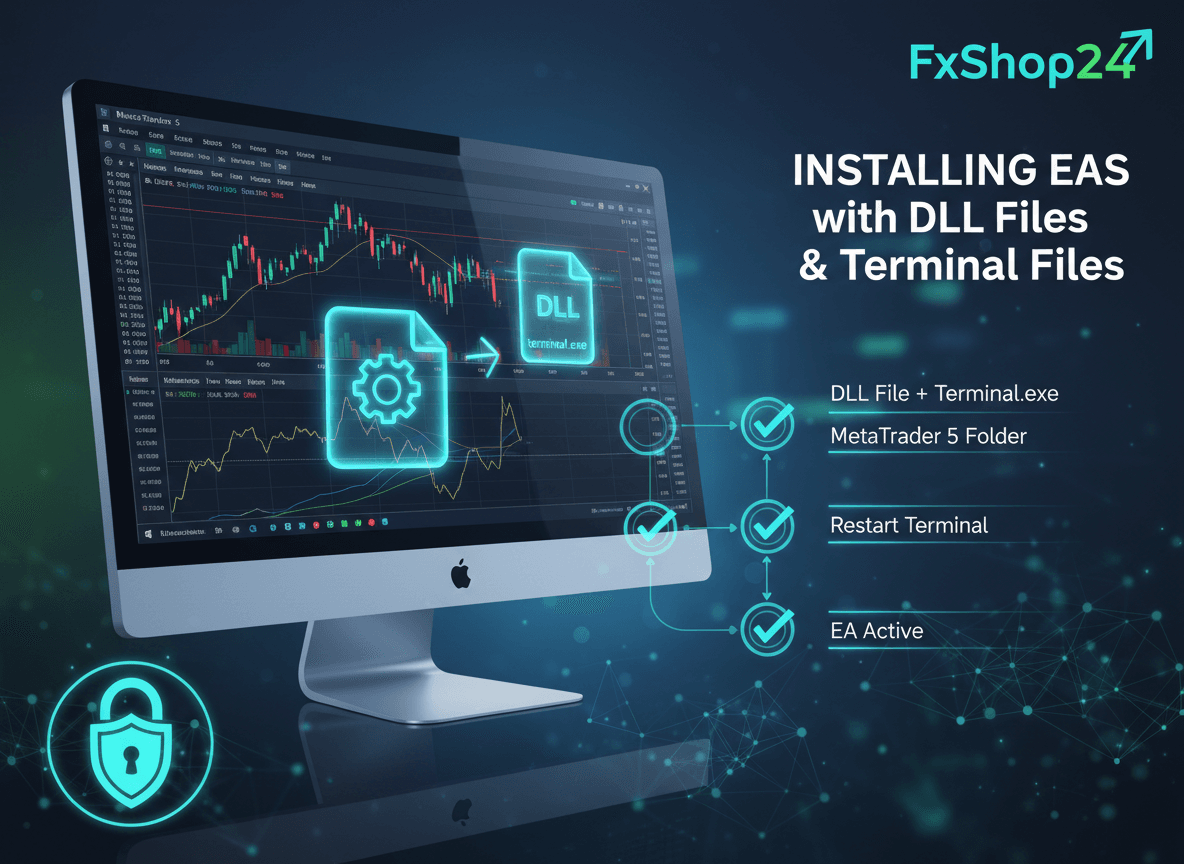
When you purchase certain Expert Advisors (EAs) from FxShop24, some come with additional system files like DLL files, terminal.exe files, and fix folders. These files are completely safe and essential for your EA to function at full capacity.
In this comprehensive guide, we'll walk you through the entire installation process, troubleshooting common issues, and ensuring your EA runs smoothly.
What Are DLL Files & Terminal Files?
DLL Files (Dynamic Link Libraries):
- Advanced functionality components for your EA
- Enable enhanced features and performance optimization
- Flagged by antivirus as false positives (they're safe)
Terminal.exe File:
- System integration file for MetaTrader
- Ensures compatibility with your broker's trading platform
- Required for certain advanced EA features
Fix Folder:
- Configuration files
- Broker-specific settings
- Performance optimization parameters
These files work together to give your EA the power and reliability you need for consistent trading.
Why Antivirus Flags These Files
Your antivirus software may flag DLL files because they're executable components. This is completely normal and not a security concern. All files from FxShop24 are thoroughly vetted and verified for authenticity and safety.
Think of it like this: Your antivirus is being overly cautious, similar to how it might flag legitimate software updates. We'll show you how to safely bypass this.
Pre-Installation Checklist
Before you begin, make sure you have:
- ✅ Your EA download package (usually in .zip format)
- ✅ WinRAR or 7-Zip extractor (Download WinRAR)
- ✅ Administrator access to your computer
- ✅ MetaTrader 4 or MetaTrader 5 installed with default settings on C: drive
- ✅ 15-20 minutes of uninterrupted time
Step 1: Disable Your Antivirus (CRITICAL)
This is the most important step. You must disable your antivirus BEFORE downloading or copying any files.
Windows Defender (Most Common)
- Click the Windows Start button
- Type "Windows Security" and open it
- Click Virus & threat protection
- Click Manage settings
- Scroll down to "Real-time protection"
- Toggle OFF (it will turn gray)
Note: This is temporary. We'll re-enable it after installation.
Avast or AVG
- Right-click the antivirus icon in your system tray (bottom-right corner)
- Select Pause protection or Disable
- Choose duration: Select Until restart or Permanently until I resume
Kaspersky
- Right-click the Kaspersky icon in system tray
- Select Pause protection
- Choose your preferred duration
Norton or McAfee
- Right-click the antivirus icon
- Select Disable or Turn off
- Confirm the action
⏱️ Time-Saving Tip: Keep your antivirus disabled for the entire installation process. We'll add MetaTrader to the exclusion list afterward to prevent future interference.
Step 2: Close MetaTrader Completely
IMPORTANT: MetaTrader must be completely closed before copying files. If it's running, you won't be able to copy files to the root folder.
- Close MetaTrader (click the X button)
- Open Task Manager (press Ctrl+Shift+Esc)
- Look for any "MetaTrader" or "MT4/MT5" processes
- If any exist, right-click and select End Task
- Wait 10 seconds to ensure all processes have terminated
Verification: Check the system tray (bottom-right corner) to confirm MetaTrader is completely closed.
Step 3: Extract Your EA Files
- Locate your downloaded .zip file
- Right-click it
- Select Extract to folder (or Extract here if using WinRAR)
- A new folder will appear with all your EA files inside
What you should see:
- EA file (.ex4 or .ex5)
- DLL files
- Terminal.exe file
- Fix folder
- Possibly other configuration files
Step 4: Locate Your MetaTrader Root Folder
Your MetaTrader must be installed with default settings on the C: drive for this process to work.
Method 1: Using Desktop Shortcut (Easiest)
- Right-click your MetaTrader shortcut on the desktop
- Select Open file location
- This opens your MetaTrader root folder directly
Method 2: Navigate Manually
For MetaTrader 4:
- Open File Explorer
- Navigate to:
C:\Program Files (x86)\MetaTrader 4
For MetaTrader 5:
- Open File Explorer
- Navigate to:
C:\Program Files\MetaTrader 5
Note: If your MetaTrader is installed elsewhere, navigate to that location instead.
Step 5: Copy Files to MetaTrader Root Folder
Now comes the critical part. You'll copy different files to different locations.
Files Going to Root Folder
- Open your extracted EA folder
- Copy these files directly to the MetaTrader root folder:
- All DLL files
- Terminal.exe file
- Fix folder (the entire folder, not individual files)
How to copy:
- Select the file
- Press Ctrl+C (copy)
- Navigate to MetaTrader root folder
- Press Ctrl+V (paste)
- If prompted to replace, click Yes
EA File Goes to Experts Folder
- Copy your EA file (.ex4 or .ex5)
- Navigate to: MQL4Experts (MT4) or MQL5Experts (MT5)
- Paste the EA file there
Verification Checklist:
- ✅ DLL files in root folder
- ✅ Terminal.exe in root folder
- ✅ Fix folder in root folder
- ✅ EA file in MQL4/Experts or MQL5/Experts
Missing even one file will cause the EA to malfunction.
Step 6: Add MetaTrader to Antivirus Exclusion List
This prevents your antivirus from interfering with MetaTrader in the future.
Windows Defender
- Open Windows Security
- Click Virus & threat protection
- Click Manage settings
- Scroll down to Exclusions
- Click Add exclusions
- Select Folder
- Navigate to your MetaTrader root folder and select it
- Click Select Folder
Avast/AVG
- Right-click antivirus icon
- Select Settings
- Click Exceptions or Exclusions
- Click Add folder
- Select your MetaTrader root folder
- Click OK
Kaspersky
- Right-click antivirus icon
- Select Settings
- Click Threats → Exclusions
- Click Add folder
- Select MetaTrader root folder
- Click OK
Norton/McAfee
- Open antivirus settings
- Find Exclusions or Exceptions
- Click Add
- Select your MetaTrader root folder
- Save changes
Step 7: Re-enable Your Antivirus
Once the exclusion list is configured, you can safely re-enable your antivirus.
Your MetaTrader folder is now protected from antivirus interference while your system remains secure.
Step 8: Restart MetaTrader
- Open MetaTrader
- Navigate to Navigator (left panel)
- Expand Expert Advisors
- Your EA should now appear in the list
If it doesn't appear, go back and verify all files were copied correctly.
Step 9: Enable Auto Trading & DLL Imports
This is the final configuration step.
- Drag your EA onto a chart
- The EA Settings window will open
- Go to the Common tab
- Check these boxes:
- ✅ Allow live trading
- ✅ Allow DLL imports (REQUIRED for this EA)
- Go to the Inputs tab to configure your preferred trading parameters
- Click OK
Your EA is now ready to trade!
How to Verify Your EA Is Working
Check 1: Look for the Smiley Face
After adding the EA to your chart, look at the top-right corner:
- 😊 Smiley face = EA is active and working perfectly
- 😞 Sad face = Auto trading is OFF
If you see a sad face, click the AutoTrading button in your toolbar to enable it.
Check 2: Monitor the Journal
- Click the Terminal window at the bottom of MetaTrader
- Go to the Journal tab and Experts tab
- Look for error messages
- If no errors appear, your EA is running correctly
Check 3: Verify Internet Connection
- Ensure your PC/VPS is connected to the internet
- Verify MetaTrader is logged into your trading account
- Check the connection status in the bottom-right corner
Troubleshooting Common Issues
Issue: EA Doesn't Appear in Navigator
Solutions:
- Verify MetaTrader was completely closed before copying files
- Confirm ALL files were copied (DLL, terminal.exe, fix folder, EA file)
- Restart MetaTrader completely
- Check that antivirus didn't quarantine any files
Issue: EA Shows Sad Face (Not Trading)
Solutions:
- Click the AutoTrading button in the toolbar
- Go to Tools → Options → Expert Advisors → Check "Allow automated trading"
- Restart MetaTrader
Issue: EA Shows Errors in Journal
Solutions:
- Verify "Allow DLL imports" is checked in Common tab
- Confirm all DLL files are in the MetaTrader root folder
- Confirm terminal.exe is in the root folder
- Confirm fix folder is in the root folder
- Contact support with the error message
Issue: Antivirus Keeps Blocking Files
Solutions:
- Add the entire MetaTrader folder to exclusions (not individual files)
- Restart your computer after adding to exclusion list
- Temporarily disable real-time protection while EA runs (if needed)
Issue: EA Not Trading
This might be normal. Some EAs wait for specific market conditions before trading. Monitor for 3-6 months on a demo account to assess true performance.
Best Practices for EA Trading
- Use a VPS - Running EAs on your PC is not advisable due to internet interruptions and shutdown problems
- Test on Demo First - Run your EA on a demo account for 3-6 months before live trading
- Monitor Regularly - Check the Journal tab for errors and performance metrics
- Keep Records - Use Myfxbook or similar tools to track performance
- Update Regularly - Keep your EA and MetaTrader updated for optimal performance
Need Help?
If you encounter any issues during installation or have questions about your EA:
- Email: [email protected]
- Telegram: @FxShop24Support
- Live Chat: Available on https://fxshop24.net
We're here 24/7 to help you succeed.
Conclusion
Installing an EA with DLL files and terminal files might seem complex, but by following these steps carefully, you'll have your EA up and running smoothly. Remember:
- Disable antivirus before installation
- Close MetaTrader completely
- Copy ALL files to the correct locations
- Add MetaTrader to antivirus exclusions
- Enable DLL imports in EA settings
Once installed, your EA will have access to advanced features and optimized performance that standard installations can't provide.
Happy trading! 🚀
FxShop24 - Professional Forex Trading Toolshttps://fxshop24.net
All EAs are thoroughly tested and verified for safety and authenticity. We stand behind every product we sell.